Subtitles, audio and playback speed in Reeltu
Where to find subtitles online without leaving the film, how to fix their timing and size, when you can switch the audio track, and how playback speed works.
· 6 min read
In this article
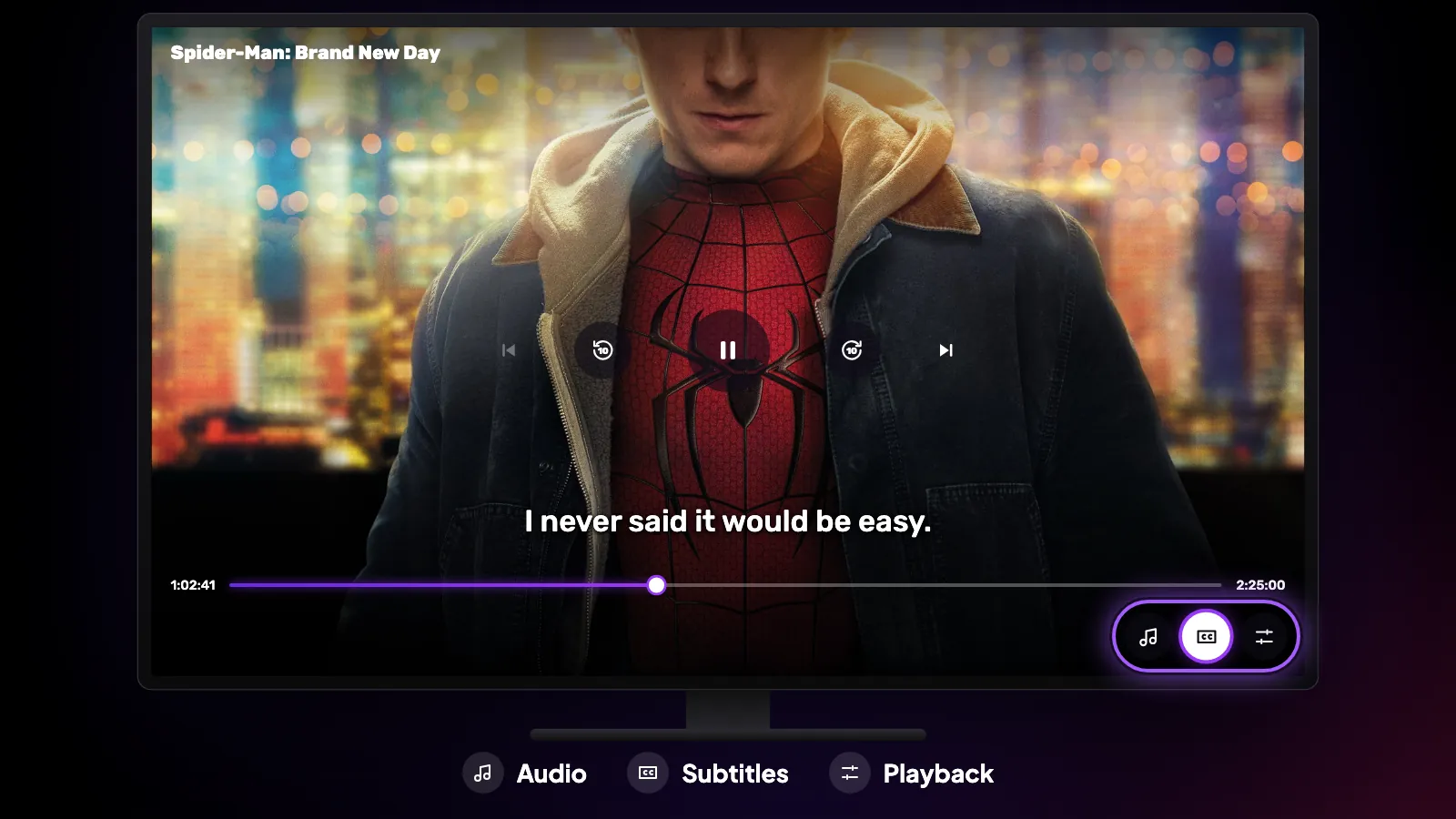
Everything here lives inside the player, behind two buttons: CC for subtitles and the gear for playback. It works the same way on Android TV, Android phones, Mac and Windows; where a platform differs, it says so below.
Subtitles are picked for you
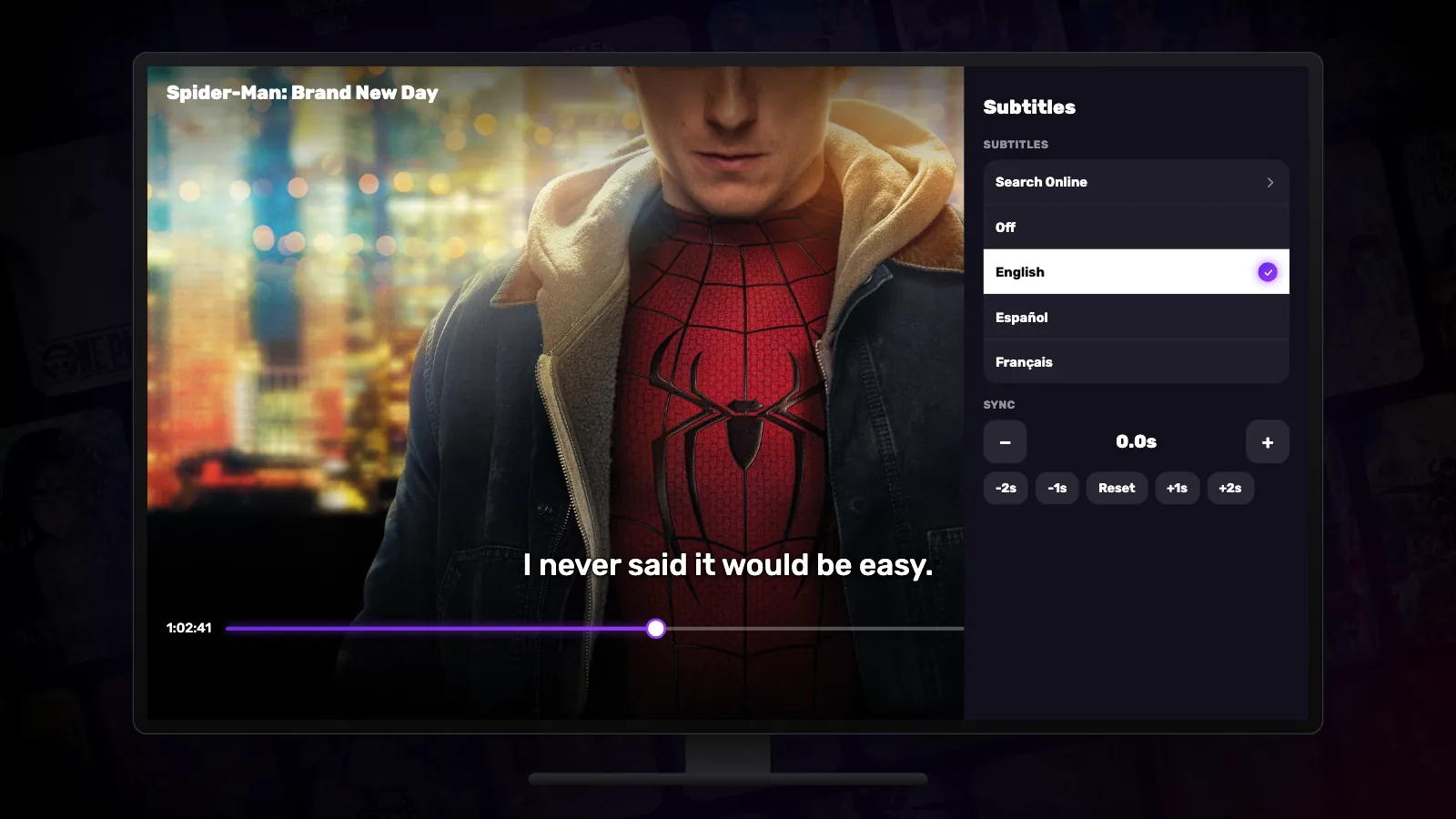
When a video starts, Reeltu chooses the subtitles itself. If the video offers subtitles in your device’s language, those come on. If you are already hearing your own language, it turns on the short “forced” track when there is one — the one that translates signs and the odd line in another language — and otherwise leaves subtitles off.
You can change that at any time with the CC button.
Searching for subtitles online
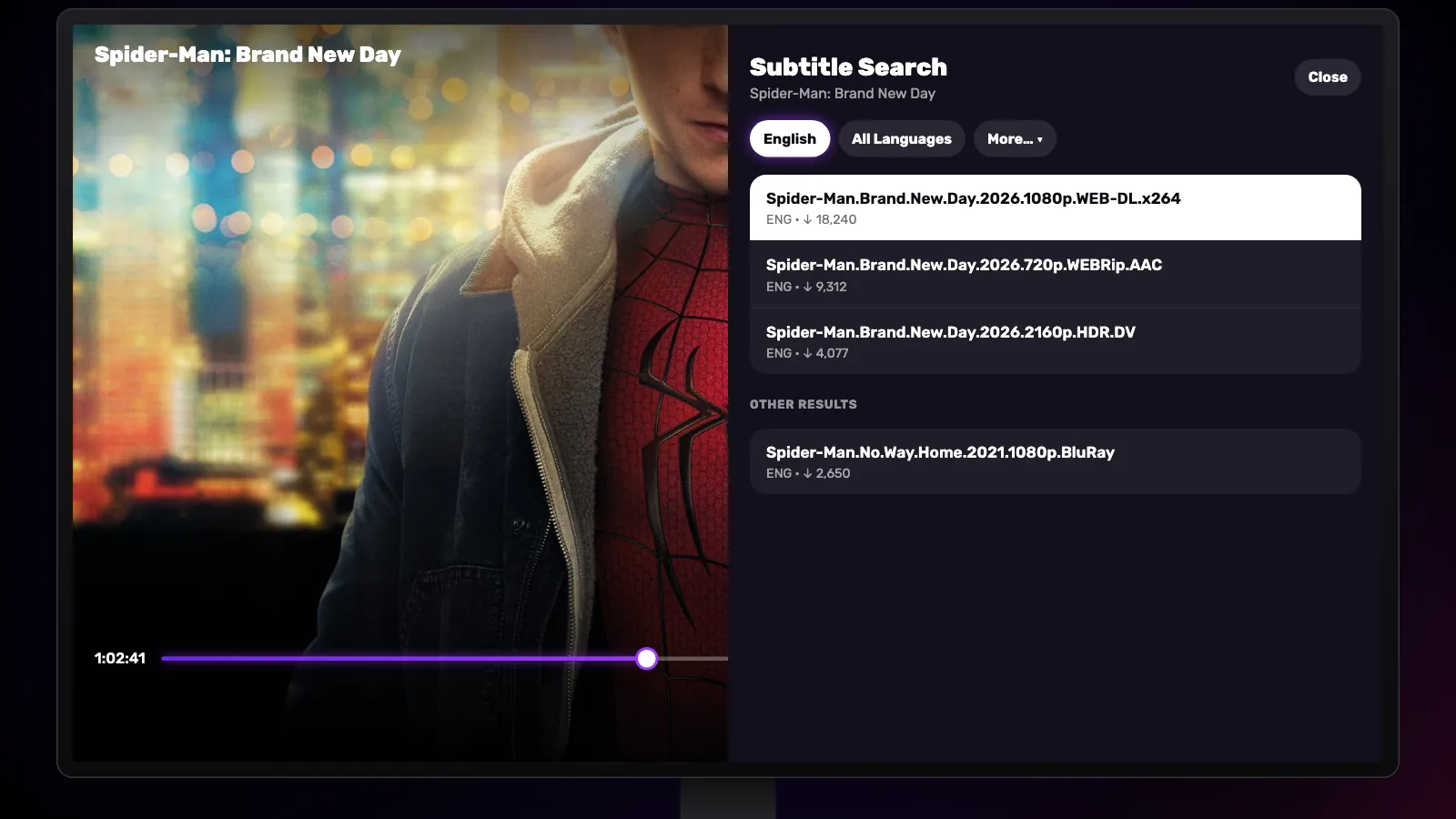
The first row under CC is Search online. It looks the film or episode up on OpenSubtitles and Subsource in about 60 languages, starting with your device’s language, with quick buttons for English, all languages, and the full list. Pick a result and it loads straight into the film — you never leave the player.
Below it are Off, any subtitle you have just downloaded, and the tracks the video itself carries.
Timing, size and background
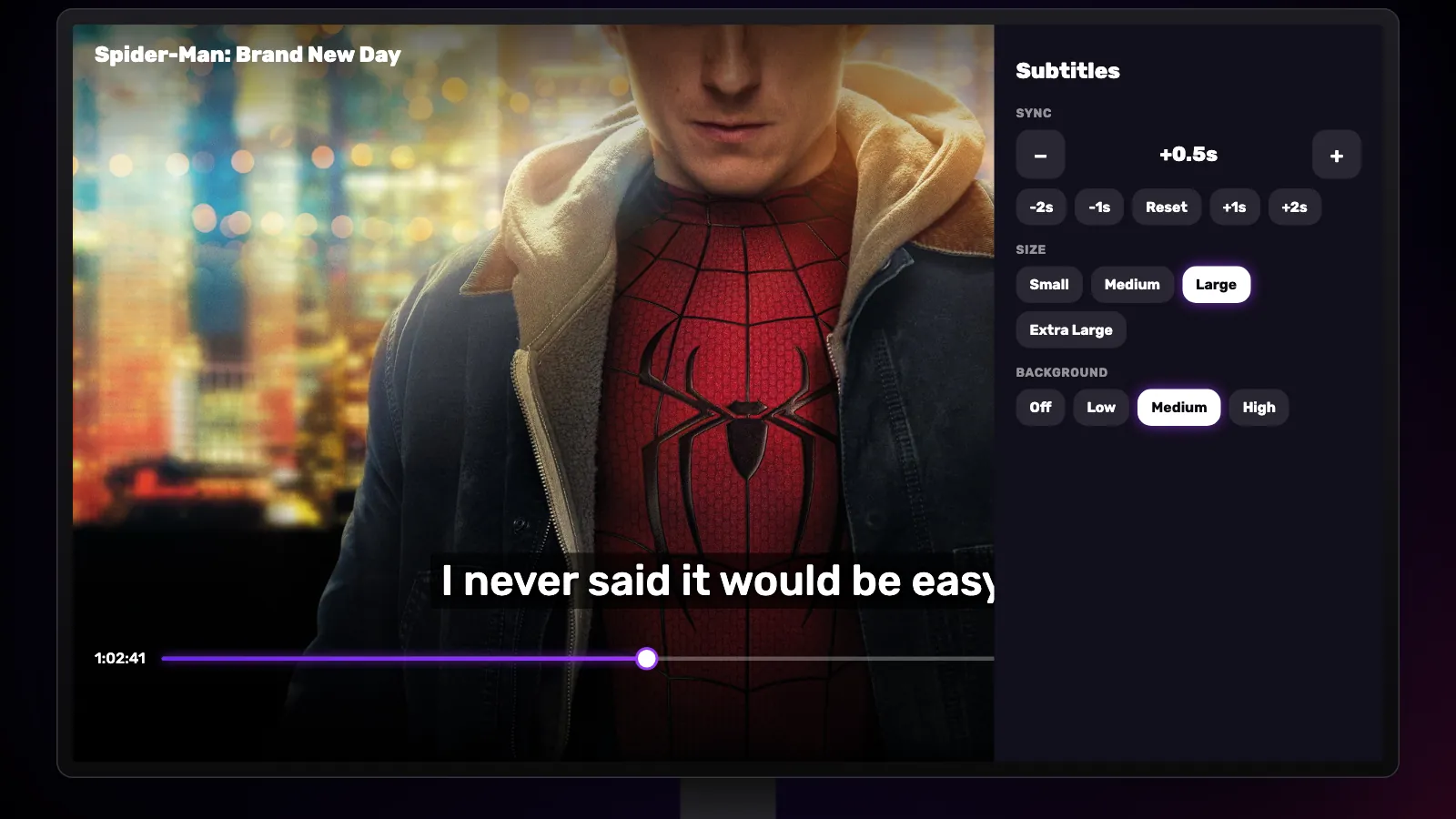
If the lines appear too early or too late, open Sync: the minus and plus buttons move them in steps of a tenth of a second, and the quick buttons from −3s to +3s add that many seconds to the current shift, so pressing −2s twice moves them four seconds; Reset puts everything back. Plus makes the subtitles come later. It works the same on every platform.
Size has four steps, Small to Extra Large, and Background adds a dark band behind the text in three strengths, which helps on a bright scene. On Windows, changing the size or background reloads the video at the same moment, so there is a brief pause.
Switching the audio
When a title carries more than one audio track — a dubbed and an original version, for example — an audio button appears next to CC and lists the tracks by language. Switch whenever you like; the film carries on from the same moment. For anime it lists the available dubs alongside the original.
Playback speed, quality and aspect
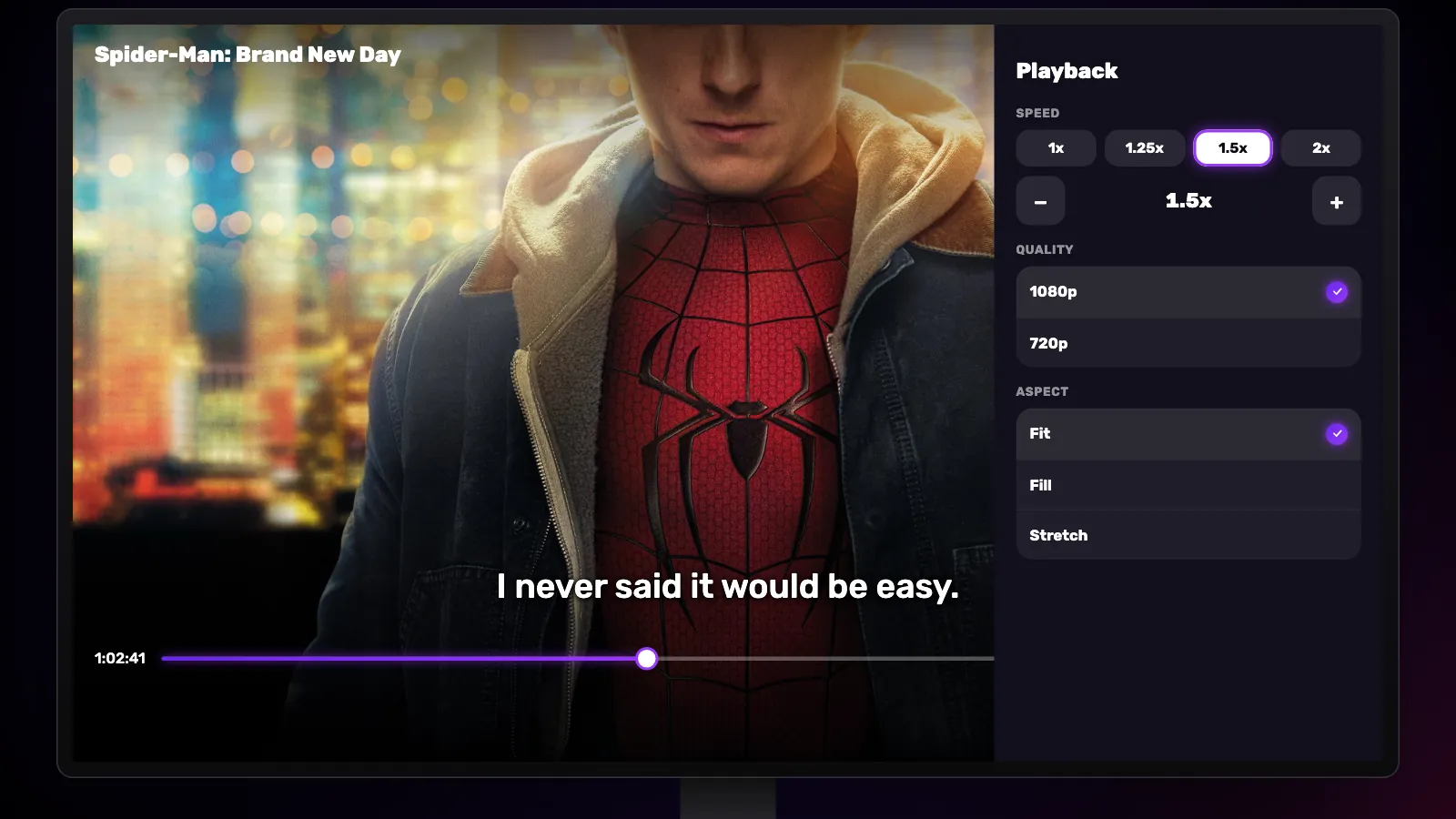
The gear opens the speed setting: one press for 1x, 1.25x, 1.5x or 2x, or the minus and plus buttons for fine steps of 0.05 anywhere between 0.25x and 2x. Below it, Quality appears when the video comes in more than one resolution: it starts on the highest, and on a slow connection you can pick a lower one (1080p or 720p, for example). Last, Aspect sets how the video fills the screen — Fit, Fill or Stretch.
Skipping and the next episode
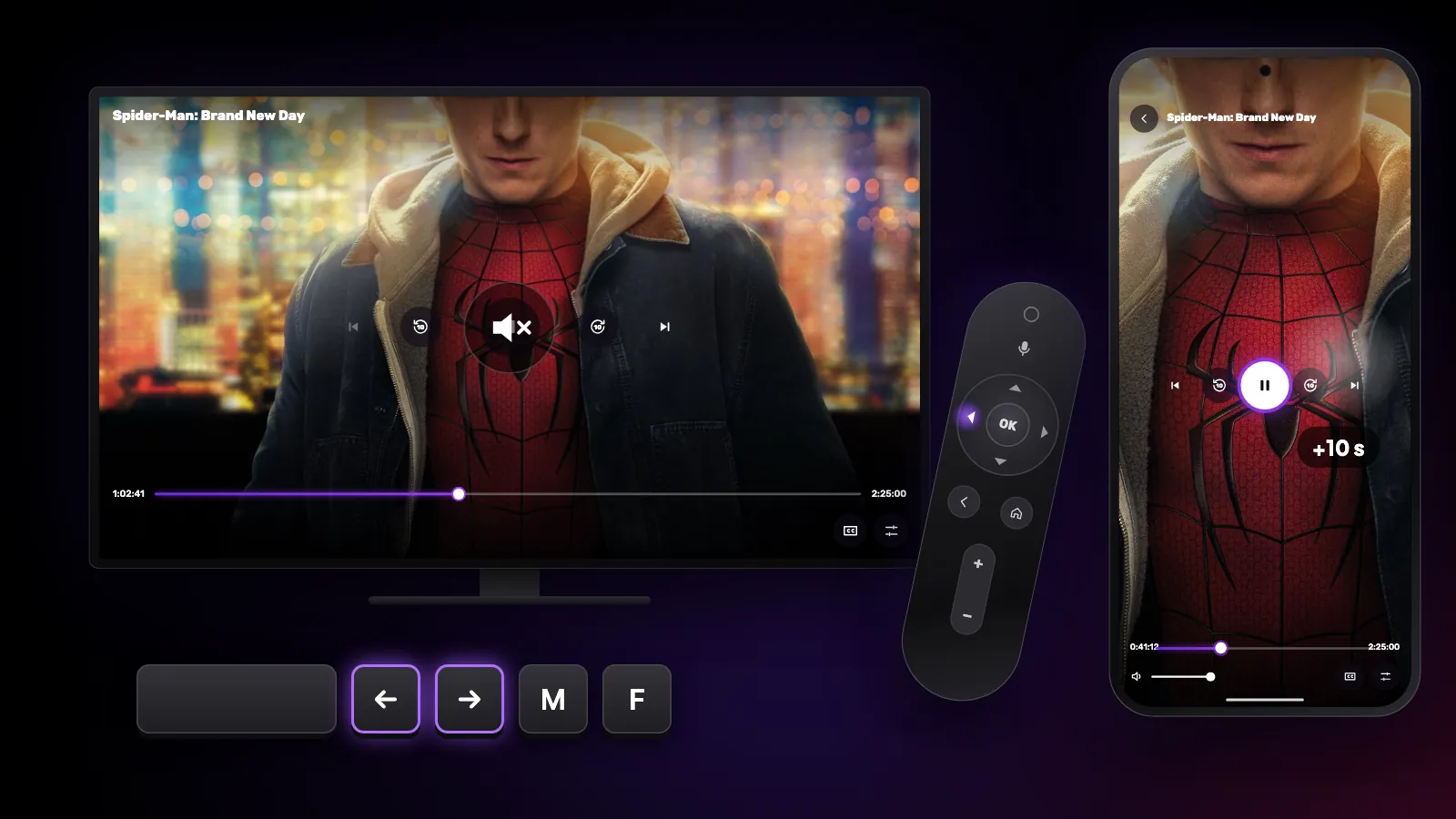
Every platform skips in 10-second steps. On a TV remote, press left or right; on a phone, double-tap the left or right side of the video; on a Mac or PC, use the arrow keys. On a TV, presses in quick succession add up.
Anime and Short roll into the next episode on their own when one ends. For series, the player has next and previous episode buttons. While anything plays, the screen stays on.
Watch Reeltu
30 seconds of the app, in your language.
Keep reading
Guides
Shortcuts and gestures you might not know
The hidden controls in Reeltu: remote keys on Android TV, touch gestures on the phone, and keyboard and mouse shortcuts on Windows and Mac.
Guides
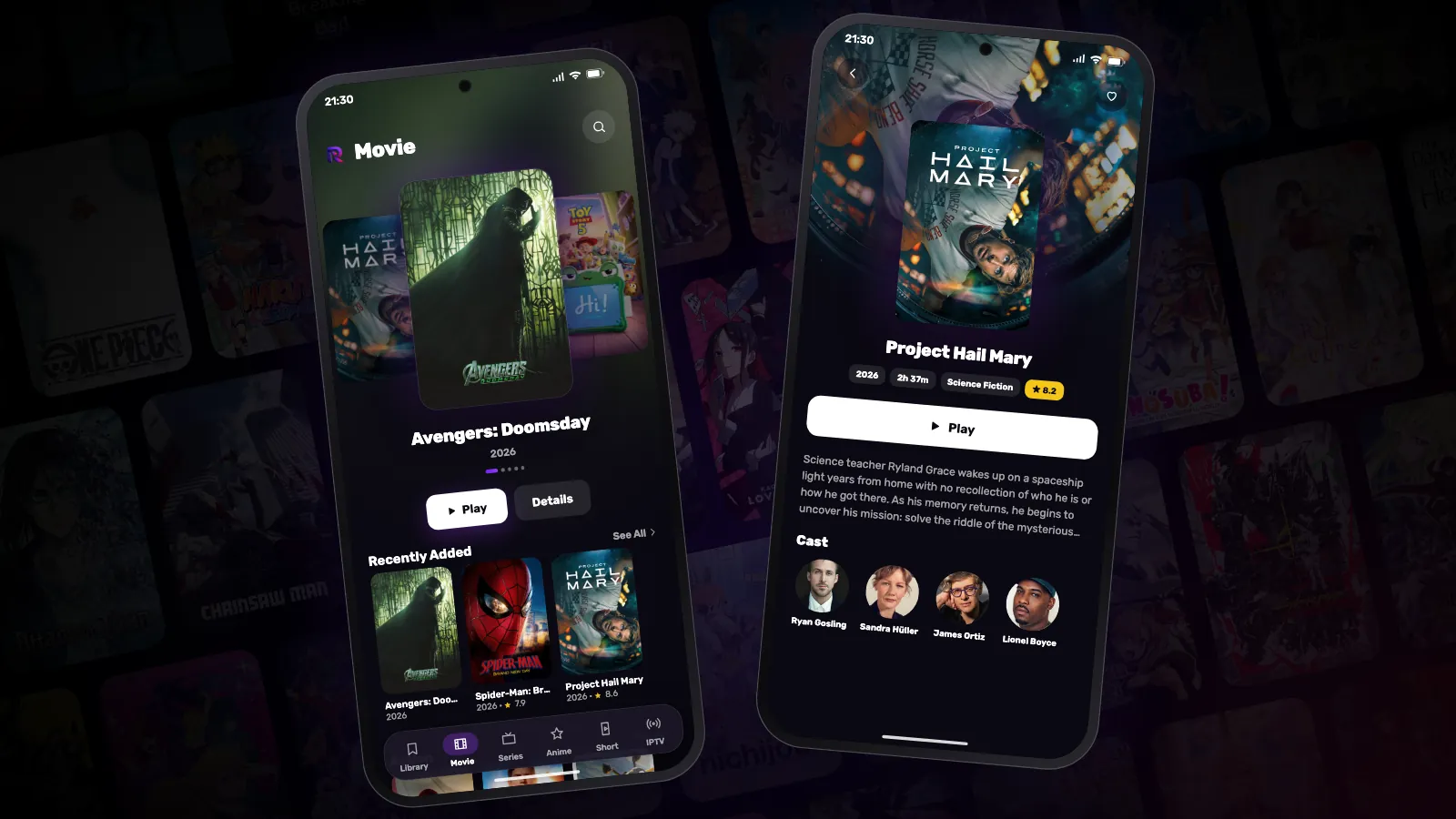
How to install Reeltu on an Android phone
Reeltu comes as an APK straight from our release server. Download it in your browser, allow that browser to install apps once, and you are done in a minute.
Guides
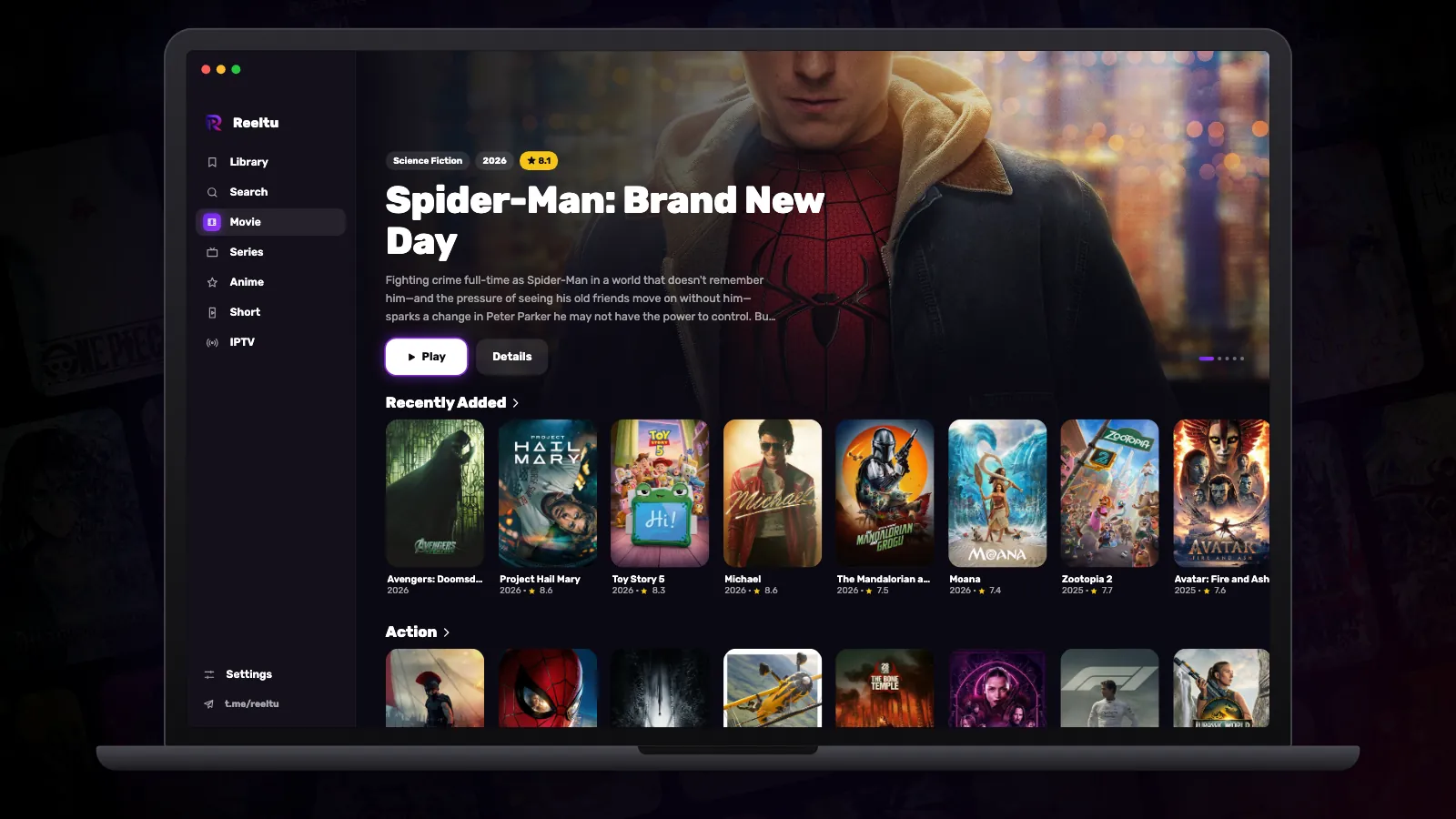
How to install Reeltu on a Mac
A disk image you open and drag into Applications. The app is signed and notarised by Apple, so macOS opens it without an unidentified-developer warning.