Shortcuts and gestures you might not know
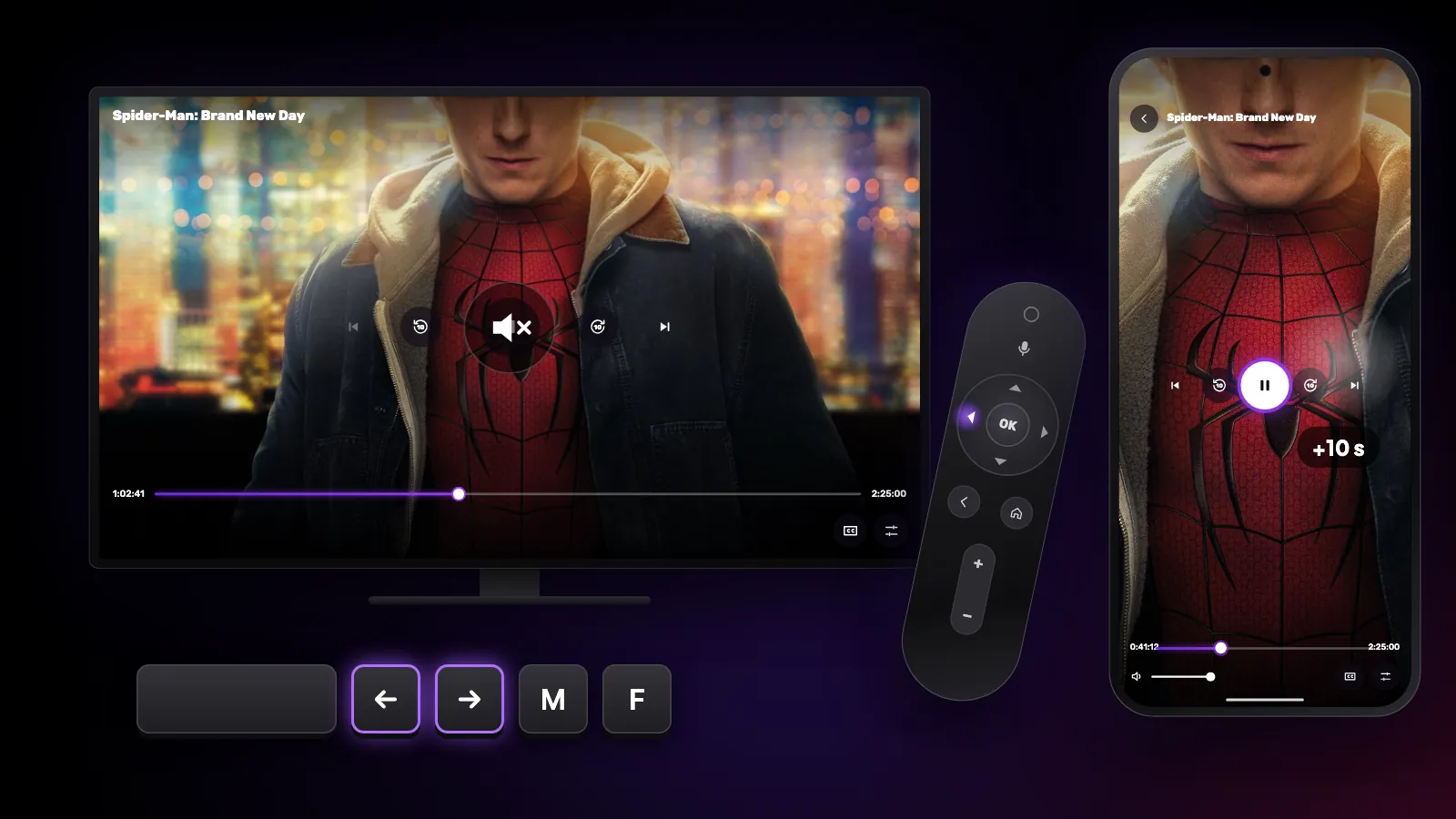
The hidden controls in Reeltu: remote keys on Android TV, touch gestures on the phone, and keyboard and mouse shortcuts on Windows and Mac.
· 5 min read
In this article
Most of Reeltu works with the buttons you can see, but each device also has a few shortcuts that save time once you know them. Here they are, device by device.
Android TV and Google TV: Live TV
In Live TV, press left to mute the channel and left again to bring the sound back. Most remotes have no mute key, so this stands in for one; turning your TV’s own volume up also brings the sound back.
Up and down, or the remote’s channel keys, switch to the previous or next channel. OK opens the channel list. It opens on the right of the screen, or on the left if Channel menu on the left is turned on in Settings; press that same direction once more to see the categories. Right brings up the bar on the Aspect button, where you choose Fit, Fill or Stretch. Back closes whatever is open, one step at a time, and then leaves the player.
Android TV and Google TV: films and series
OK pauses and resumes. A short press on left or right skips 10 seconds, and several presses in a row add up. Hold left or right to scan through the film; the longer you hold, the faster it goes, and playback continues from where you let go. The remote’s own rewind and fast-forward keys skip 10 seconds too.
Android TV and Google TV: posters
Hold OK on any poster to add it to your favourites, and hold it again to remove it. On a card in Continue Watching, holding OK takes it out of the row.
Android phone: in the player
Tap once to show or hide the controls. Double-tap the right or left half of the screen to skip 10 seconds forward or back. Press and hold near the right or left edge to fast-forward or rewind; it speeds up the longer you hold.
Swipe up or down on the left side for brightness and on the right side for volume. Swipe down in the middle to close the player. In Live TV, the brightness and volume swipes work the same way.
Android phone: everywhere else
Press and hold a poster to add it to your favourites or remove it; in Continue Watching, the same press removes it from the row. Press and hold a channel or a favourite actor to remove it from your favourites. Tap the tab you are already on to jump back to the top of the page.
Windows
In the player: Space pauses and resumes, the left and right arrows skip 10 seconds, and holding an arrow scans faster and faster. The up and down arrows and the mouse wheel change the volume, M mutes, and F or a double-click on the picture switches full screen. A single click shows or hides the controls. Esc closes what is open, then leaves full screen, then the player.
In Live TV, Page Up and Page Down change the channel, Enter opens the channel list, and the up and down arrows change the volume.
Elsewhere: right-click a poster to add it to your favourites or remove it from Continue Watching. With the episode list open, type an episode number to jump straight to it. In Search, Esc clears what you typed.
Mac
In the player: Space pauses and resumes, the left and right arrows skip 10 seconds, and holding an arrow scans faster and faster. The up and down arrows change the volume. On a trackpad, two fingers up or down change the volume and two fingers left or right move through the film. Double-click the picture for full screen; a single click shows or hides the controls. Esc closes what is open, then leaves full screen, then the player.
In Live TV, Page Up and Page Down change the channel, Return opens the channel list, and the up and down arrows change the volume.
Elsewhere: right-click (or Control-click) a poster to add it to your favourites or remove it from Continue Watching. With the episode list open, type an episode number to jump straight to it.
Keep reading

Guides
How to install Reeltu on an Android phone
Reeltu comes as an APK straight from our release server. Download it in your browser, allow that browser to install apps once, and you are done in a minute.
Guides
How to install Reeltu on a Mac
A disk image you open and drag into Applications. The app is signed and notarised by Apple, so macOS opens it without an unidentified-developer warning.
Guides
How to install Reeltu on Windows
Pick the x64 or ARM installer, get past one SmartScreen screen, and Reeltu installs for your account without asking for administrator rights.