How to install Reeltu on Google TV and Android TV
There is no store button to press, but there is a short, reliable path: the Downloader app, an address you can type with a remote, and one permission prompt.
· 6 min read
In this article
Google TV and Android TV will install an app from a file, but they will not go looking for one. You supply the file, and the television needs two things from you first: something that can fetch it, and permission to install from that thing. Both take about a minute.
Reeltu needs Android TV 8 or later. That covers Google TV devices and practically every Android TV sold in recent years.
1. Install the Downloader app
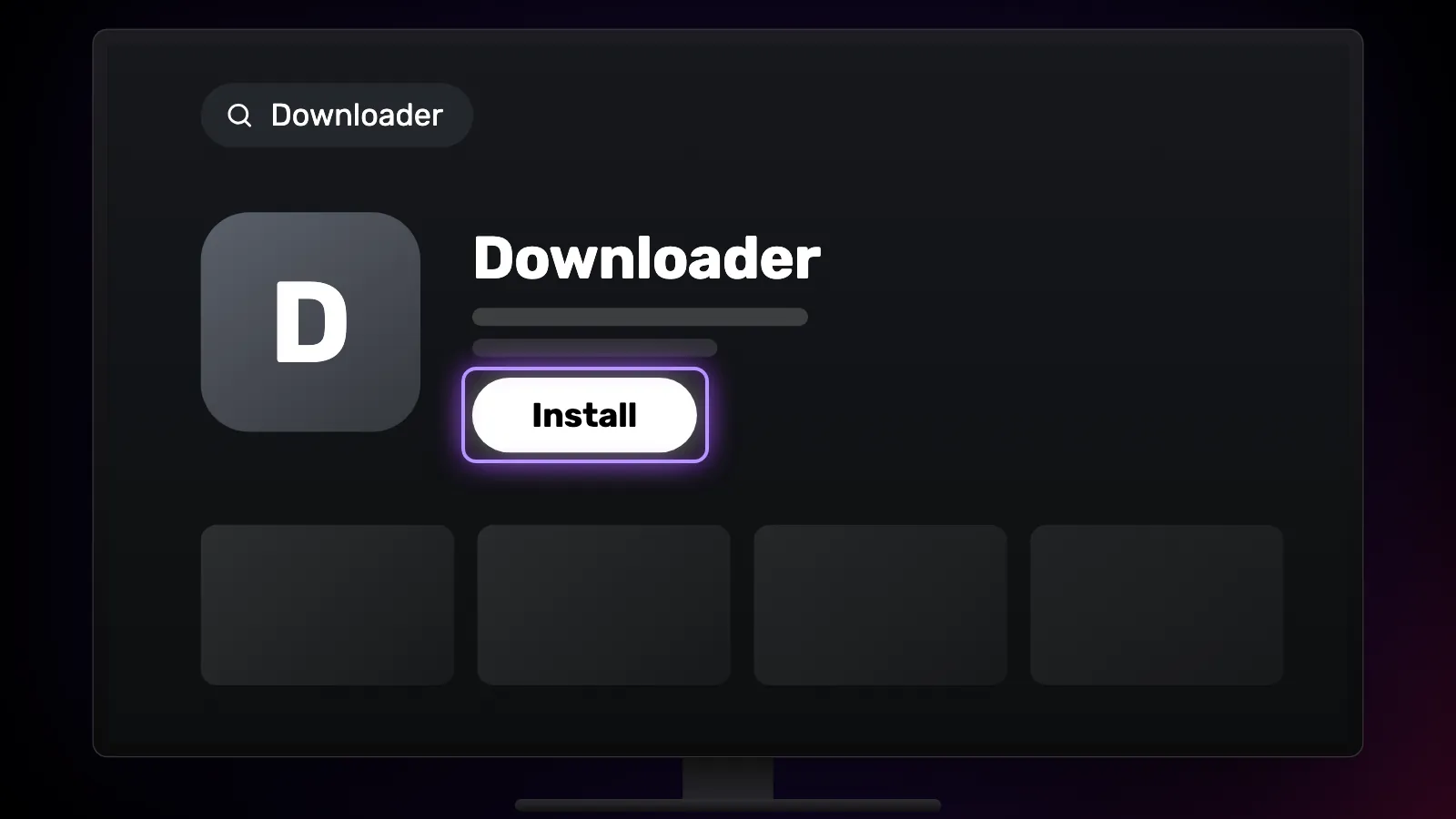
Downloader is in the Google Play store on the television itself. It is a small browser that can save a file to the TV, which is the part your TV cannot otherwise do. Install it the ordinary way and open it once so it finishes setting up.
2. Type the address
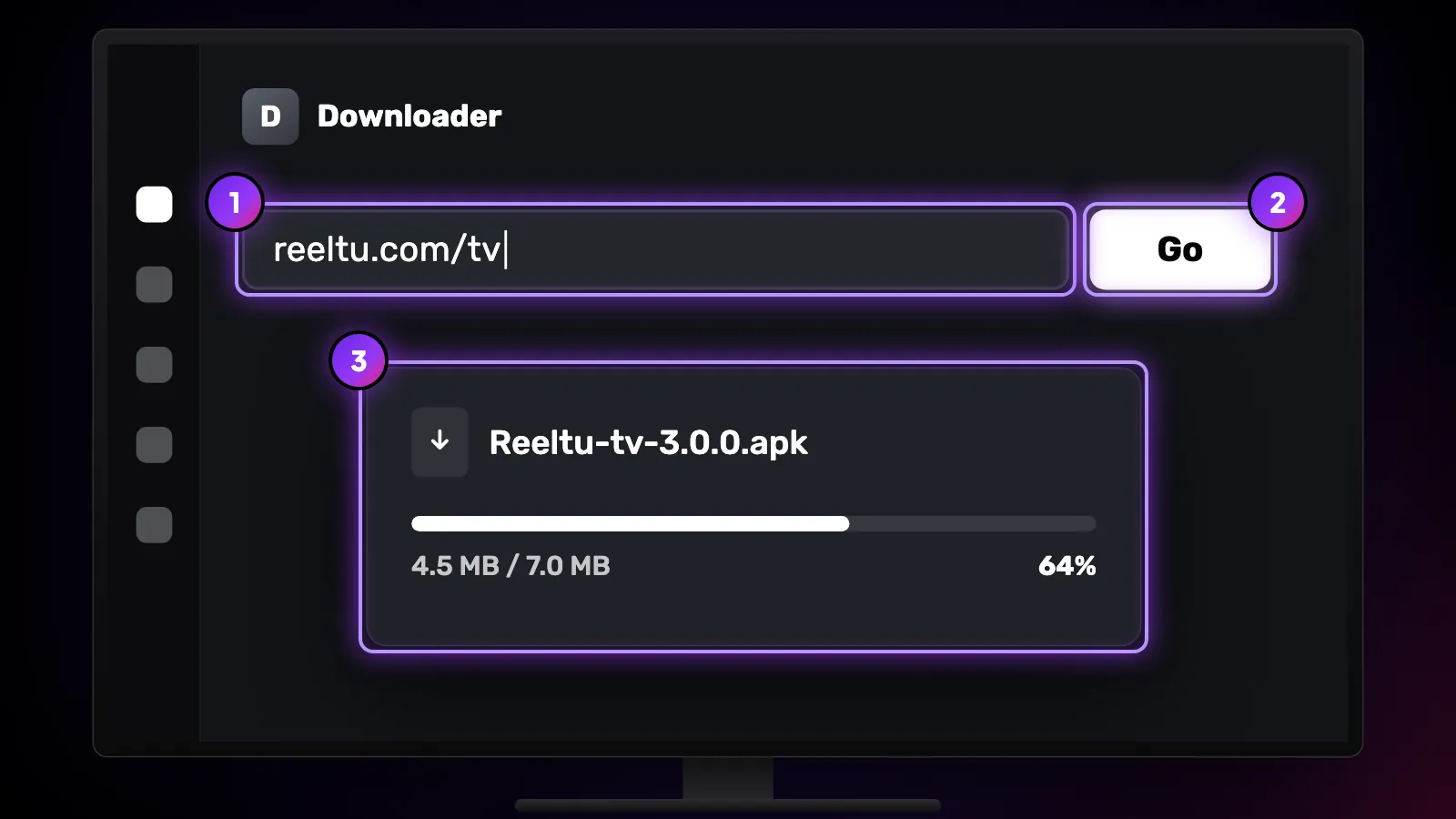
In Downloader's address field, type reeltu.com/tv and press Go. That address is not a page — it points straight at the current Android TV build, so the download starts immediately and you never have to browse anything with a remote.
3. Allow the install, once
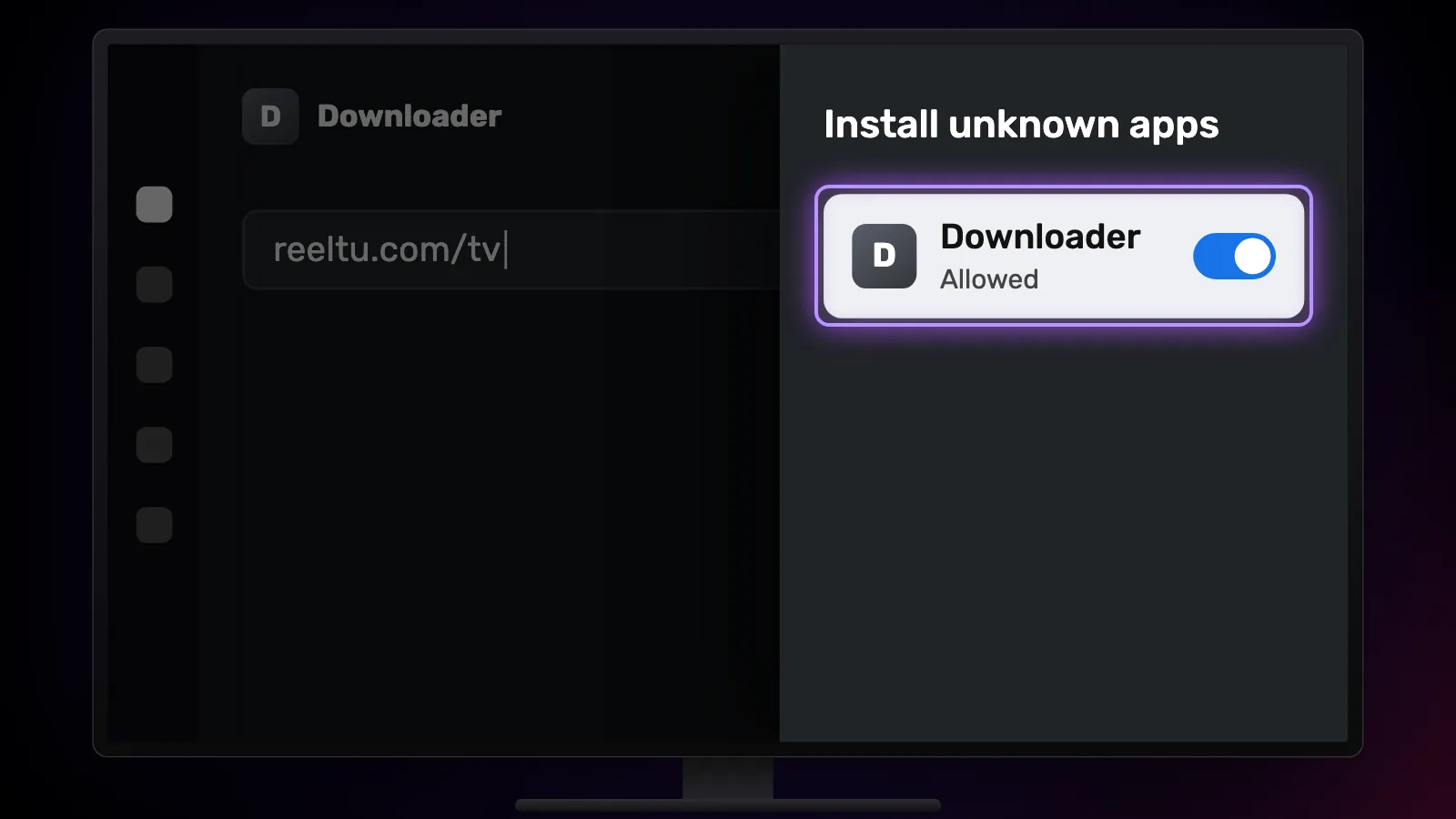
When the download finishes, the television asks whether Downloader may install unknown apps. Allow it. This is a permission for Downloader alone, not a system-wide switch, and you can take it back later in Settings without removing anything you have installed.
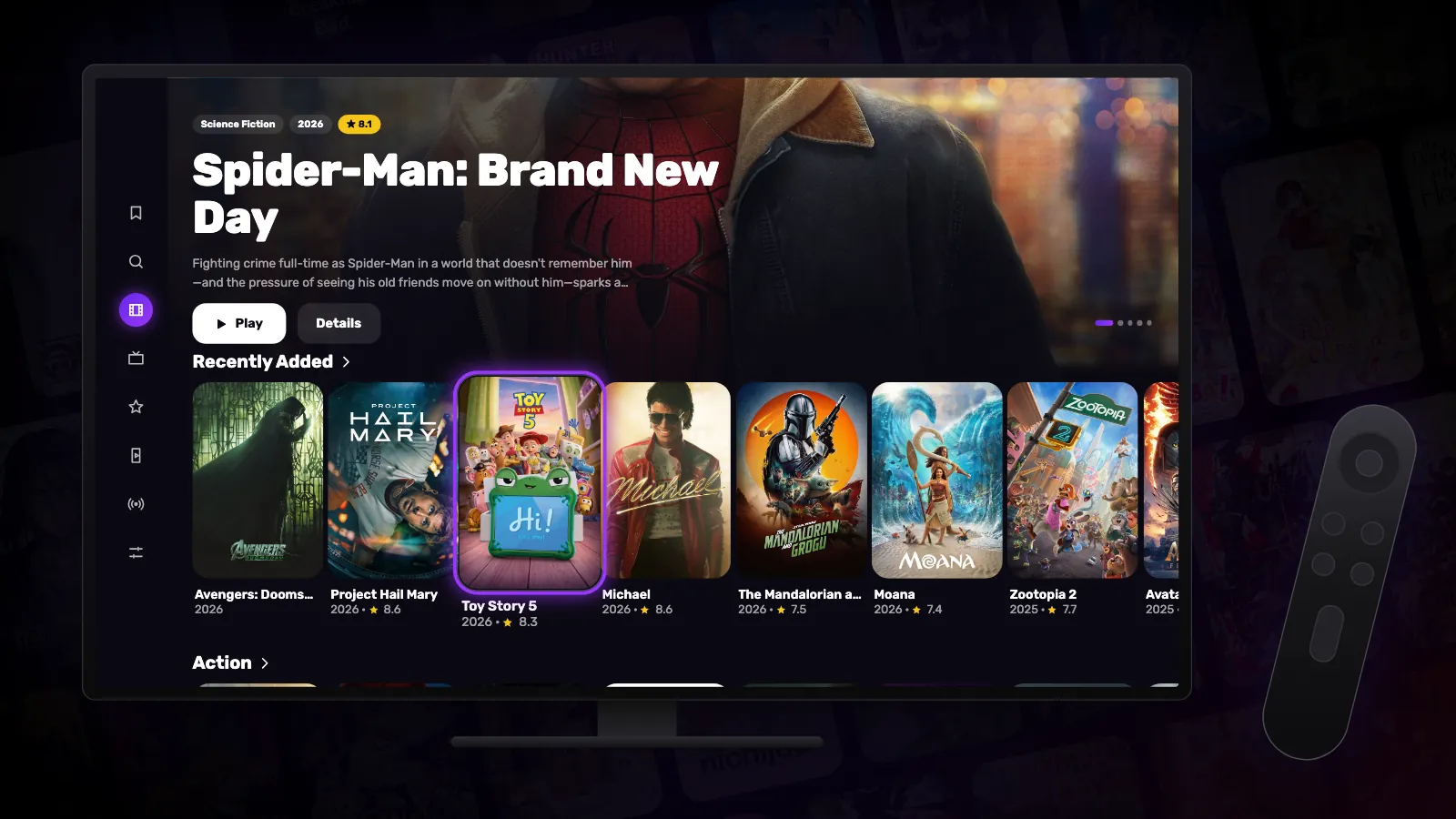
Press Install, then Open. Reeltu starts on its TV interface: a rail on the left that you walk with the D-pad, and the whole library a few presses away.
Keeping it up to date
Reeltu asks you to update only when a new version is required; until then it keeps working as it is, and reeltu.com/tv always points at the newest build if you want it sooner. When an update is required, Reeltu shows an Update required screen. On Android 10 and later it downloads the new file itself into the Downloads folder and shows you its name; open that file to install the update. A file manager app will open it, and so will simply repeating step 2.
An update installs over the app you have, so your favourites and your place in everything you are watching stay where they were.
If it does not work
If the TV says it is not allowed to install apps from this source and offers no switch, some Google TV models keep that setting behind Developer options. Turn them on by selecting the Android TV OS build number seven times in Settings › System › About, then allow Downloader under the unknown-sources setting in the Apps or Security menu. The exact menu names differ from one maker to another.
If the Install button is greyed out, the download did not finish — compare the file size with the one on the download page and try again. If the TV refuses to install the app at all, it is running Android TV 7 or older, which this build does not support.
Watch Reeltu
30 seconds of the app, in your language.
Keep reading
Guides
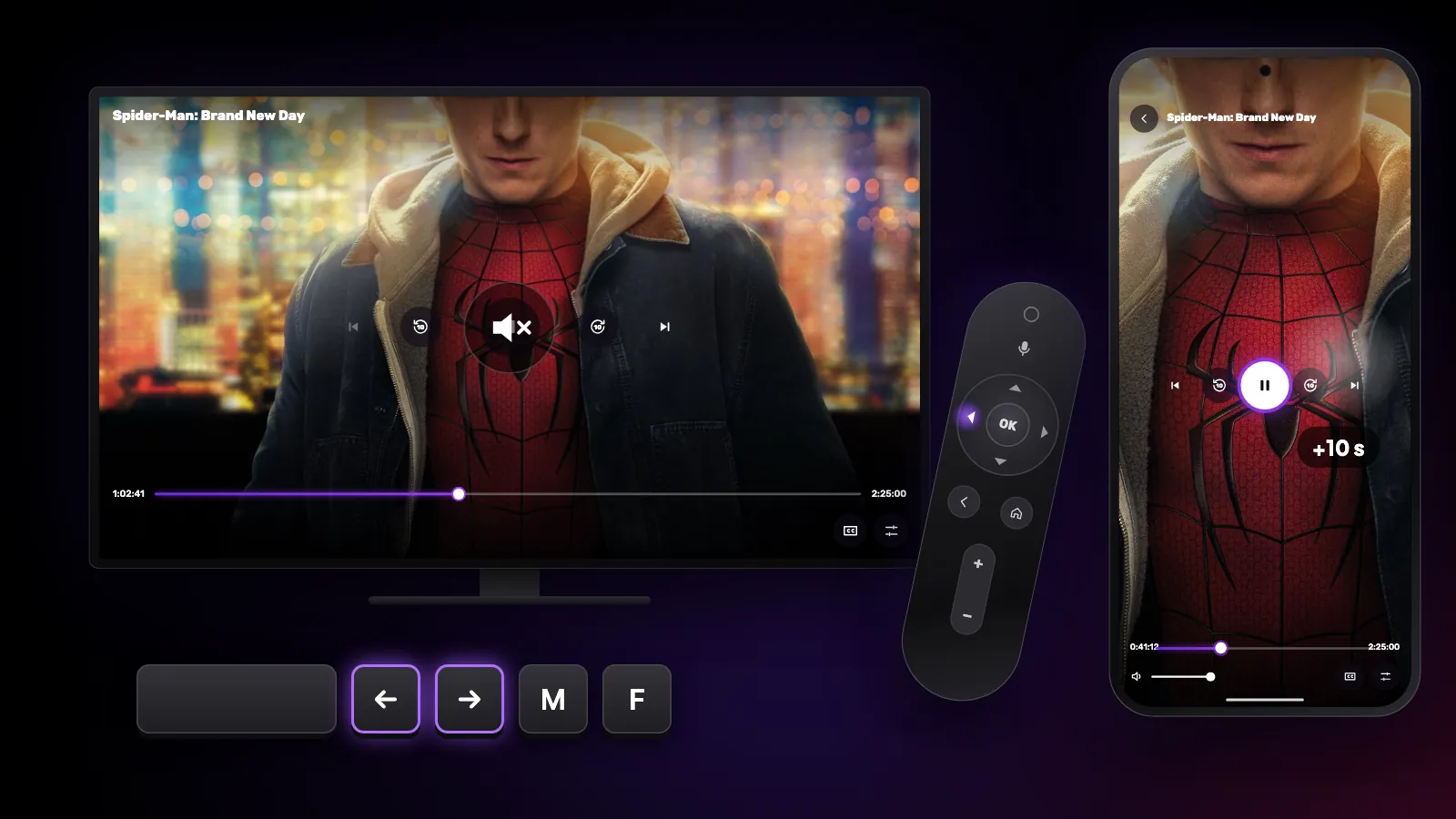
Shortcuts and gestures you might not know
The hidden controls in Reeltu: remote keys on Android TV, touch gestures on the phone, and keyboard and mouse shortcuts on Windows and Mac.
Guides
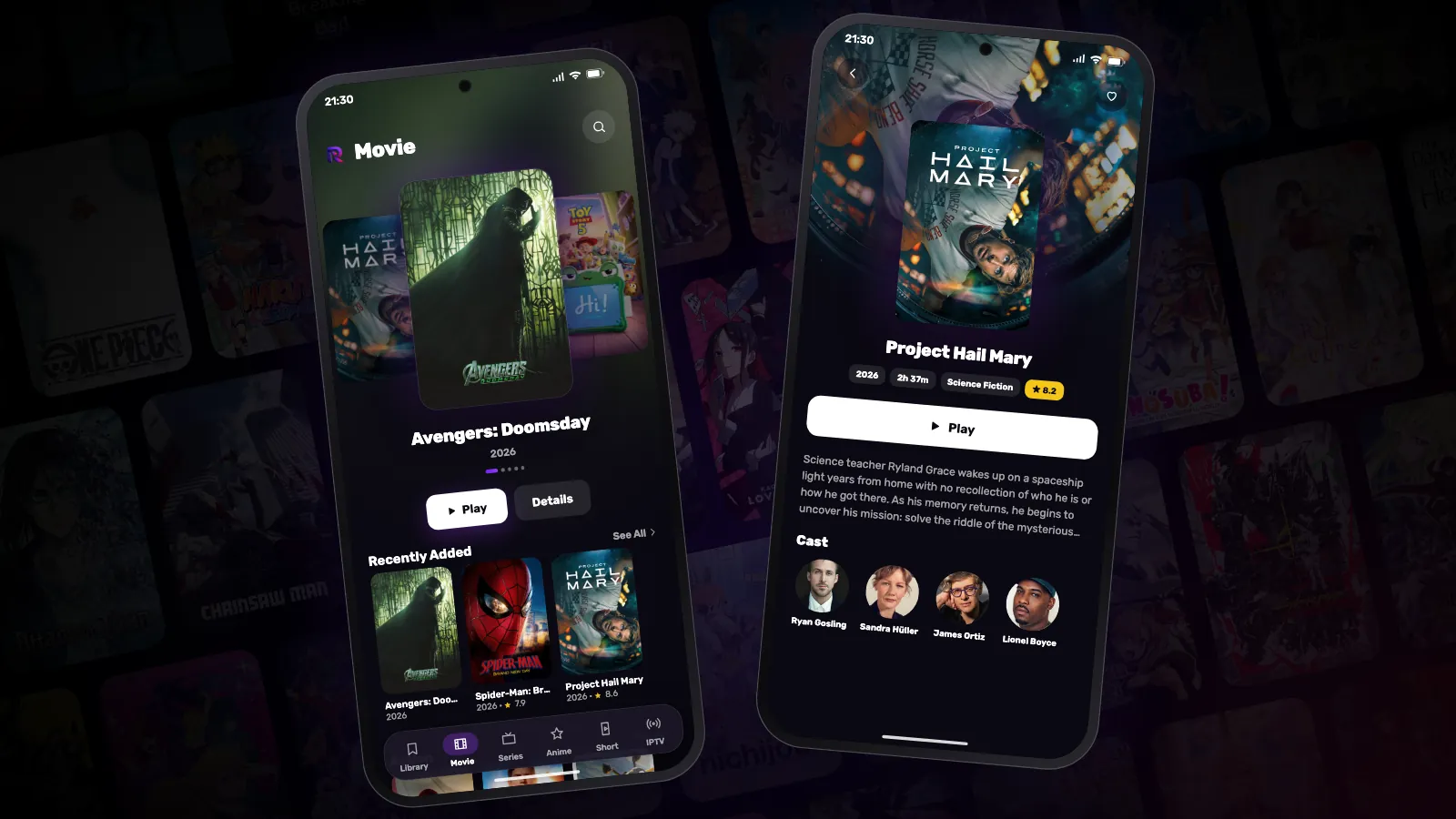
How to install Reeltu on an Android phone
Reeltu comes as an APK straight from our release server. Download it in your browser, allow that browser to install apps once, and you are done in a minute.
Guides
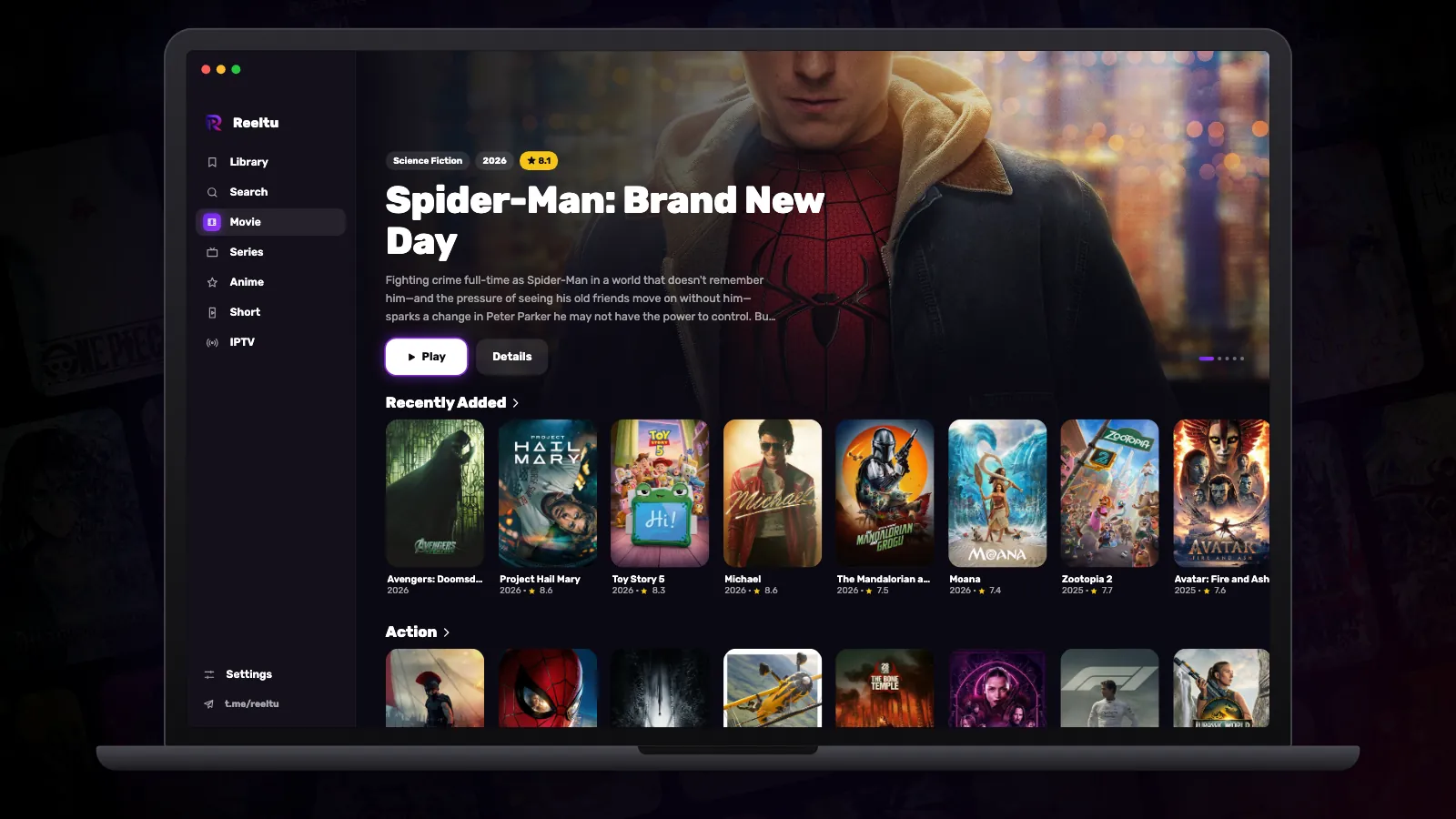
How to install Reeltu on a Mac
A disk image you open and drag into Applications. The app is signed and notarised by Apple, so macOS opens it without an unidentified-developer warning.