How to bring an old Android TV box back to life
A box that has grown slow over the years is usually not worn out — it is full, busy and out of date. A few settings and half an hour make most of them feel new again.
· 6 min read
In this article
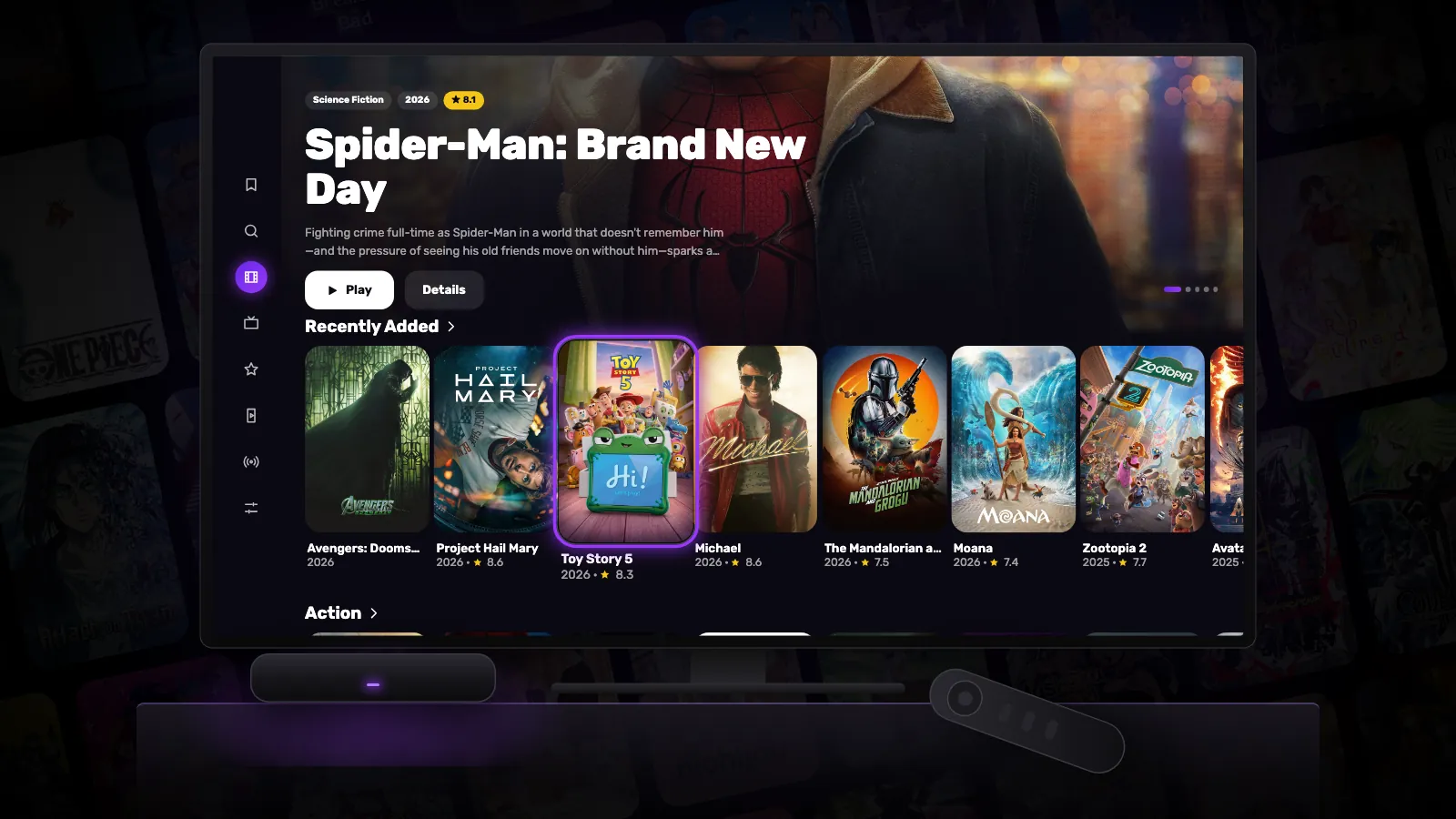
Android TV boxes from a few years ago still decode HD video without effort. When one starts to feel sluggish — menus that lag, apps that take ages to open, playback that stutters — the hardware is rarely the cause. Storage that is nearly full, apps running in the background and an out-of-date system account for most of it, and all three can be fixed from the remote.
1. Restart it properly
Many boxes never really switch off: the power button on the remote only puts them to sleep, sometimes for months. Restart from the settings menu, or unplug the box for thirty seconds. It clears whatever has piled up in memory and is the quickest fix there is.
2. Install the system updates it still gets
Look for System update, usually under Settings › Device Preferences › About or Settings › System. Even an older box may have security and stability updates waiting. The exact menu names differ from one maker to another.
3. Free up storage
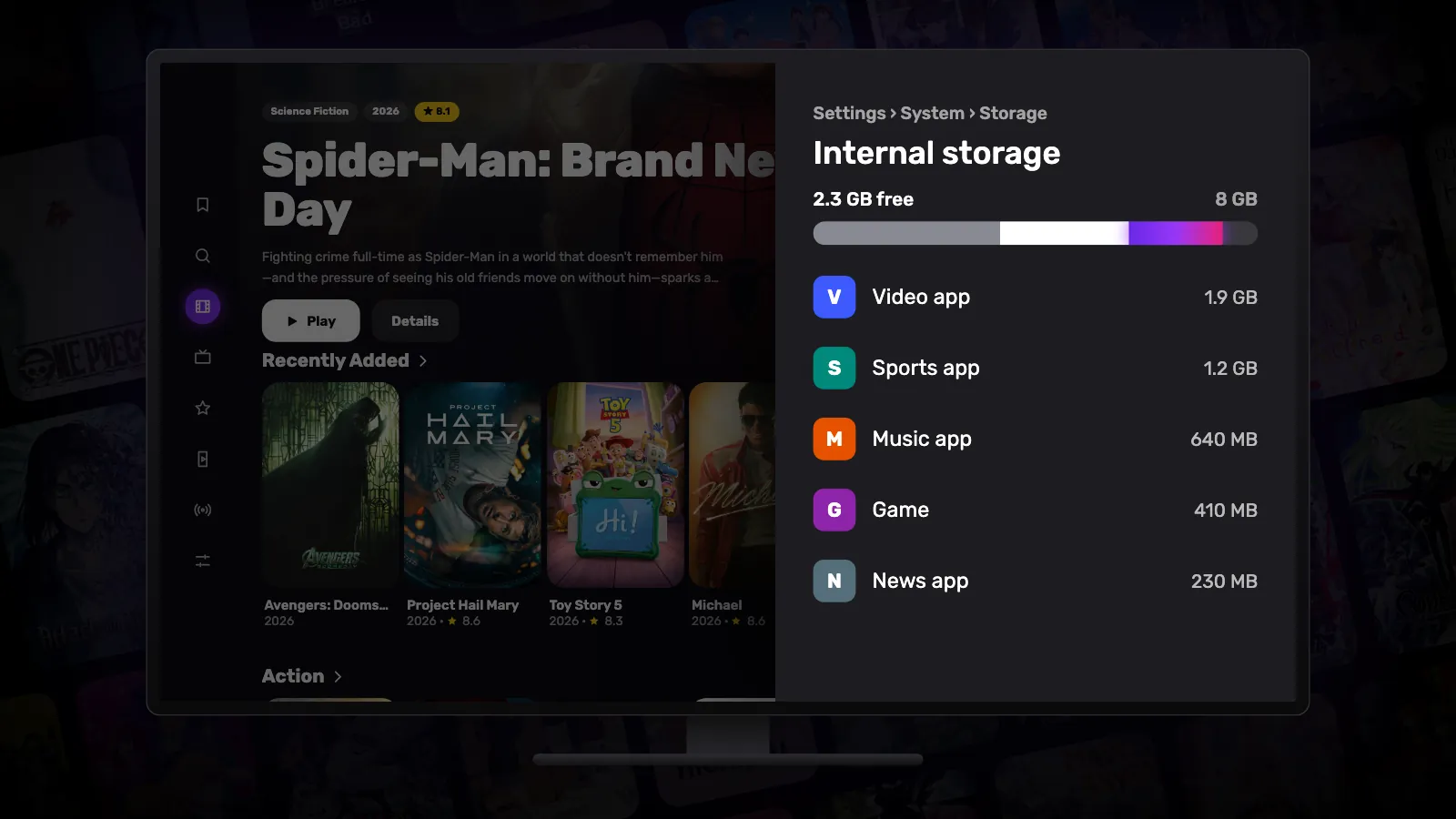
A box with less than a gigabyte free slows down noticeably and starts failing to install updates. Uninstall the apps you no longer use, clear the cache of the biggest ones, and delete installer files left in the Downloads folder. Our post on freeing up space on Google TV walks through each step, and it works the same way on Android TV.
4. Disable what you never open
Preinstalled apps you cannot uninstall can often be disabled instead: open the app in Settings › Apps and choose Disable. A disabled app does not start in the background and stops receiving updates, which saves both memory and storage. You can enable it again at any time.
5. Speed up the animations
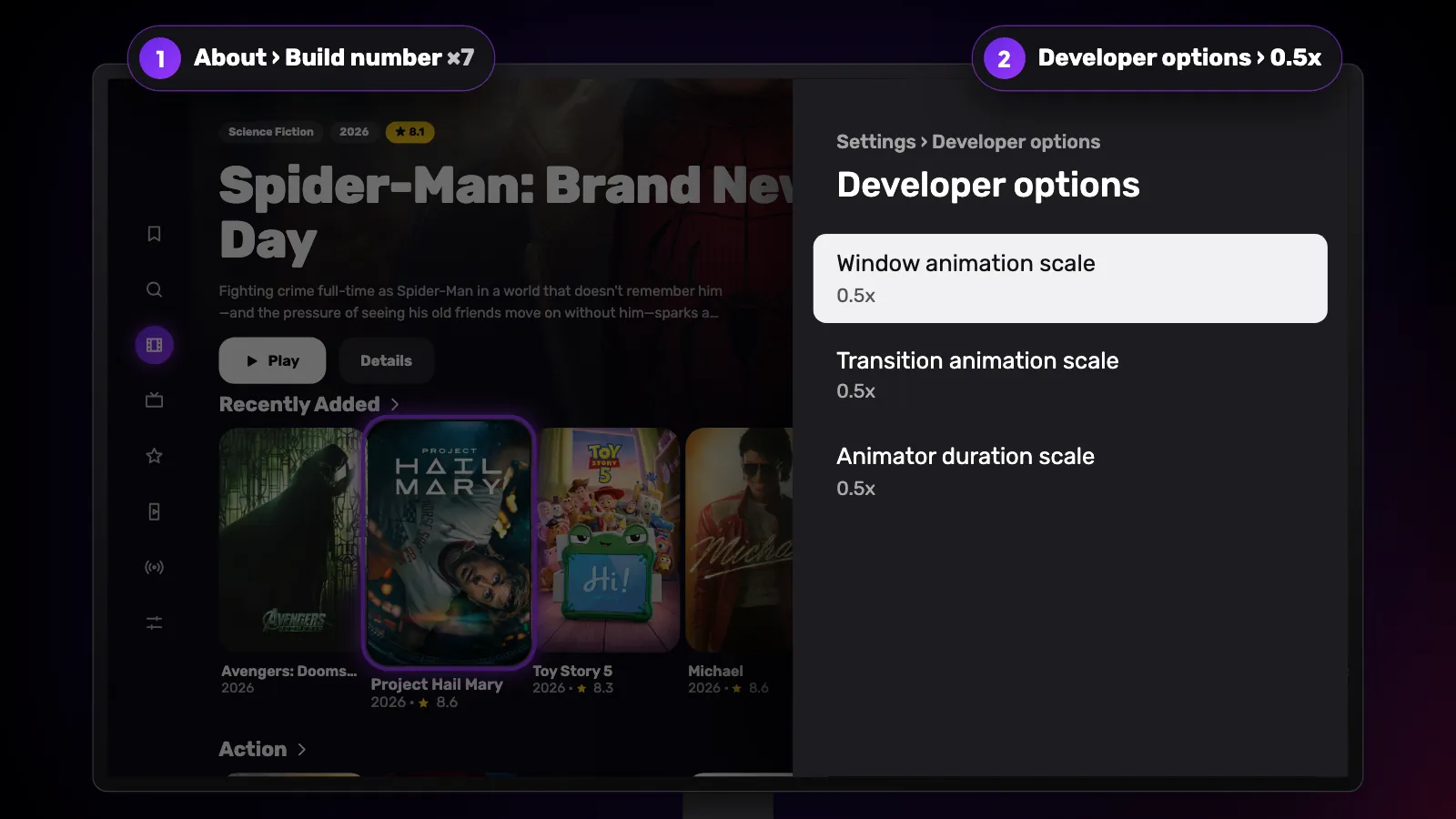
Every menu movement on Android plays a short animation, and on a slow processor they add up. Turn on Developer options by selecting the build number seven times under About, then set Window animation scale, Transition animation scale and Animator duration scale to 0.5x — or switch them off. The box does the same work; it just stops waiting for the animations.
6. Give it a better connection
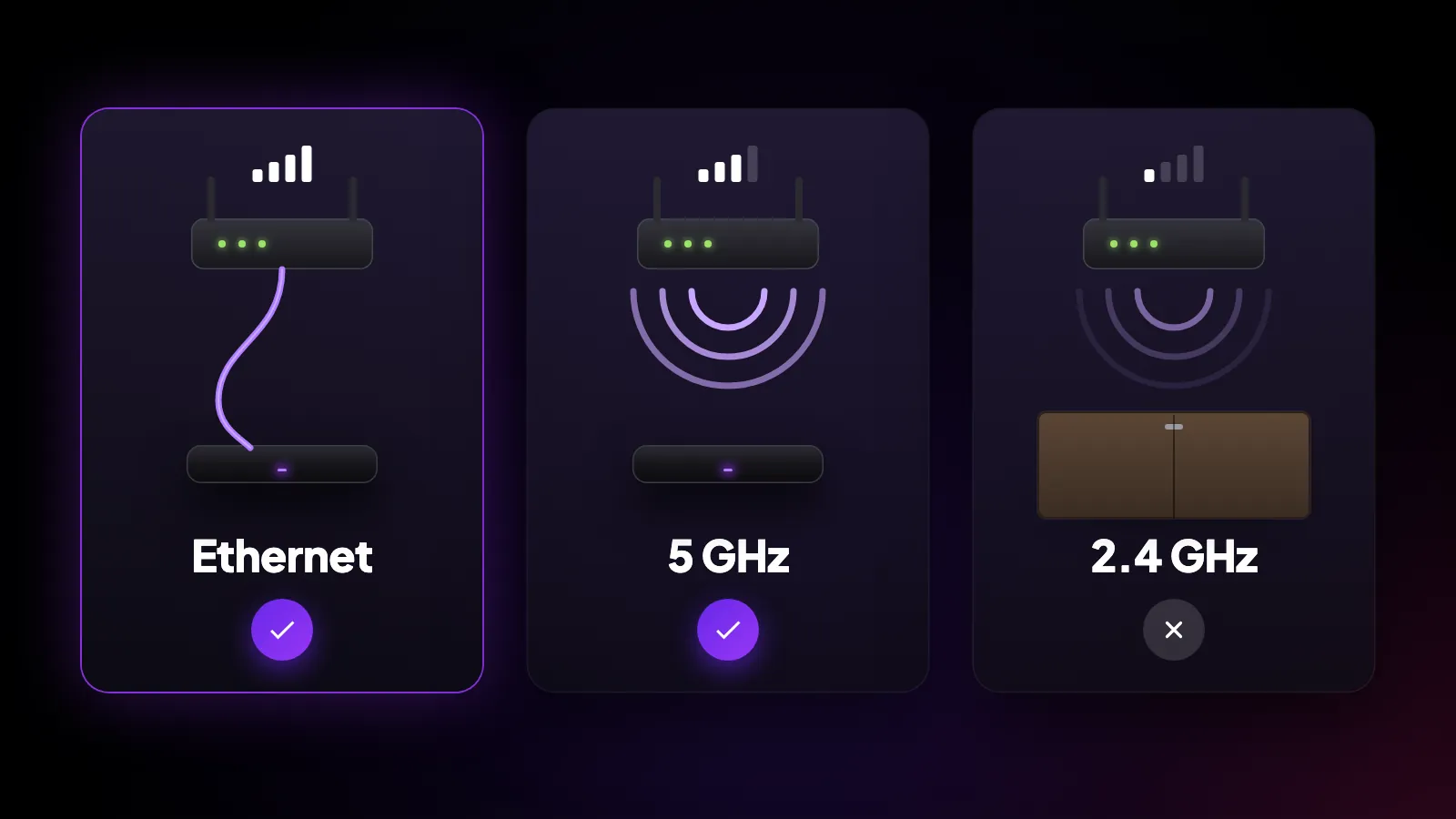
Much of what feels like a slow box is a slow network. If you can, connect it with an Ethernet cable. If not, use your router’s 5 GHz network rather than 2.4 GHz, and keep the box out of a closed cabinet — a Wi-Fi antenna behind wood and metal loses a lot of signal.
7. Choose apps that are light on resources
Large apps with heavy home screens are the ones an older box struggles with. Reeltu is a download of about 7 MB, is built for the remote from the start, and loads posters at the size they are drawn on screen rather than at full resolution, which keeps its memory use low. It runs on anything with Android TV 8 or later.
8. The last resort: a factory reset
If none of this helps, a factory reset returns the box to the state it left the factory in. It erases every app and setting, so note what you use first and sign back into your accounts afterwards. Reinstalled with only the apps you actually watch, an old box is often faster than it was on the day you bought it.
Watch Reeltu
30 seconds of the app, in your language.
Keep reading
Blog
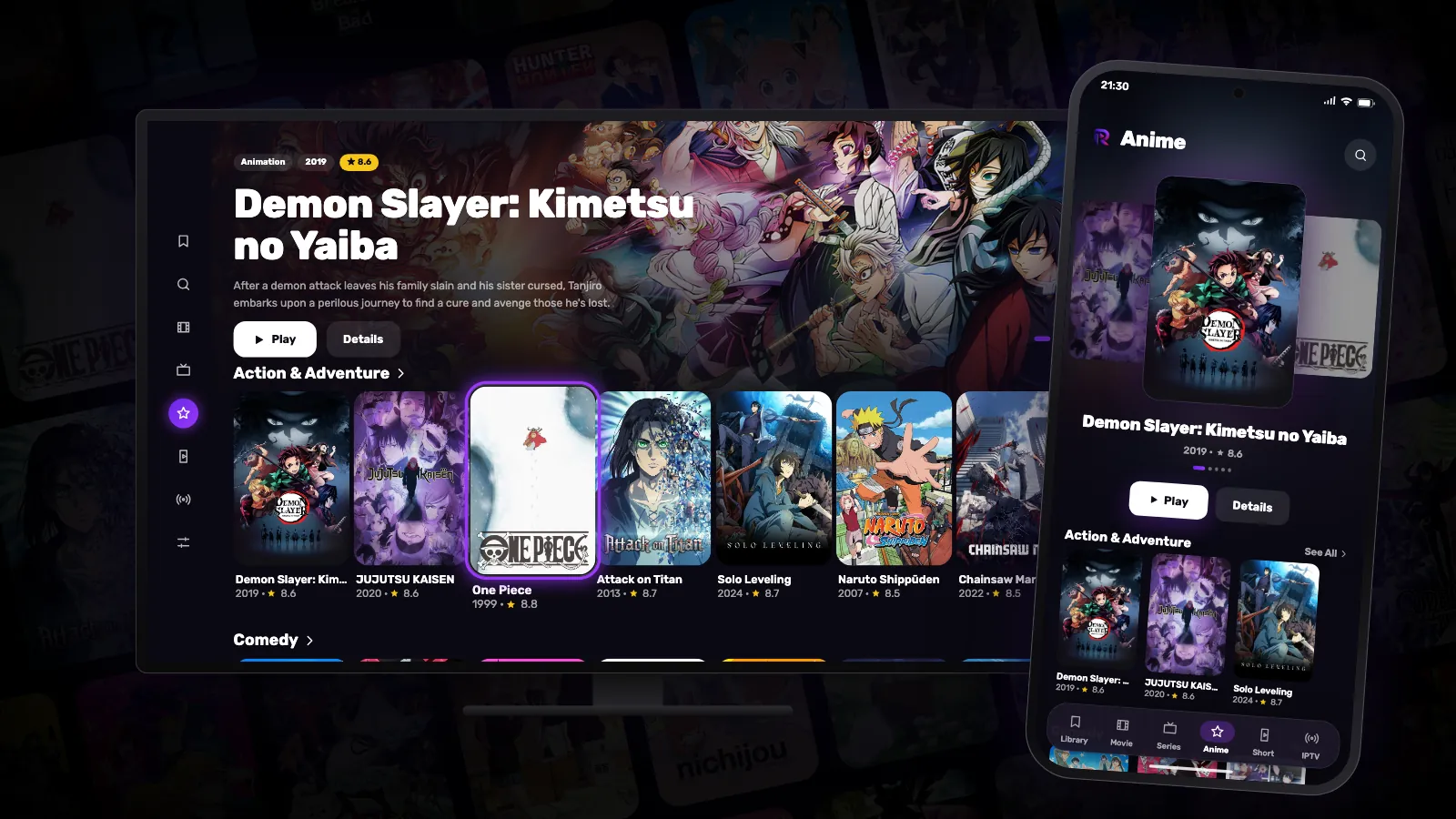
Anime gets its own tab in Reeltu
Japanese anime and animation from China and Korea now have a place of their own, with their own rows, dubs where they exist, and subtitles in up to seven languages.
Blog
Short: vertical mini-dramas in minute-long episodes
Short dramas were made for the phone: episodes of a minute or two, stories that end on a cliffhanger every time. Reeltu has a tab for them — in your language.
Blog
How to free up storage space on Google TV
Most Google TV devices ship with little storage, and a full one gets slow and stops installing updates. Here is where the space goes and how to get it back.