How to free up storage space on Google TV
Most Google TV devices ship with little storage, and a full one gets slow and stops installing updates. Here is where the space goes and how to get it back.
· 5 min read
In this article
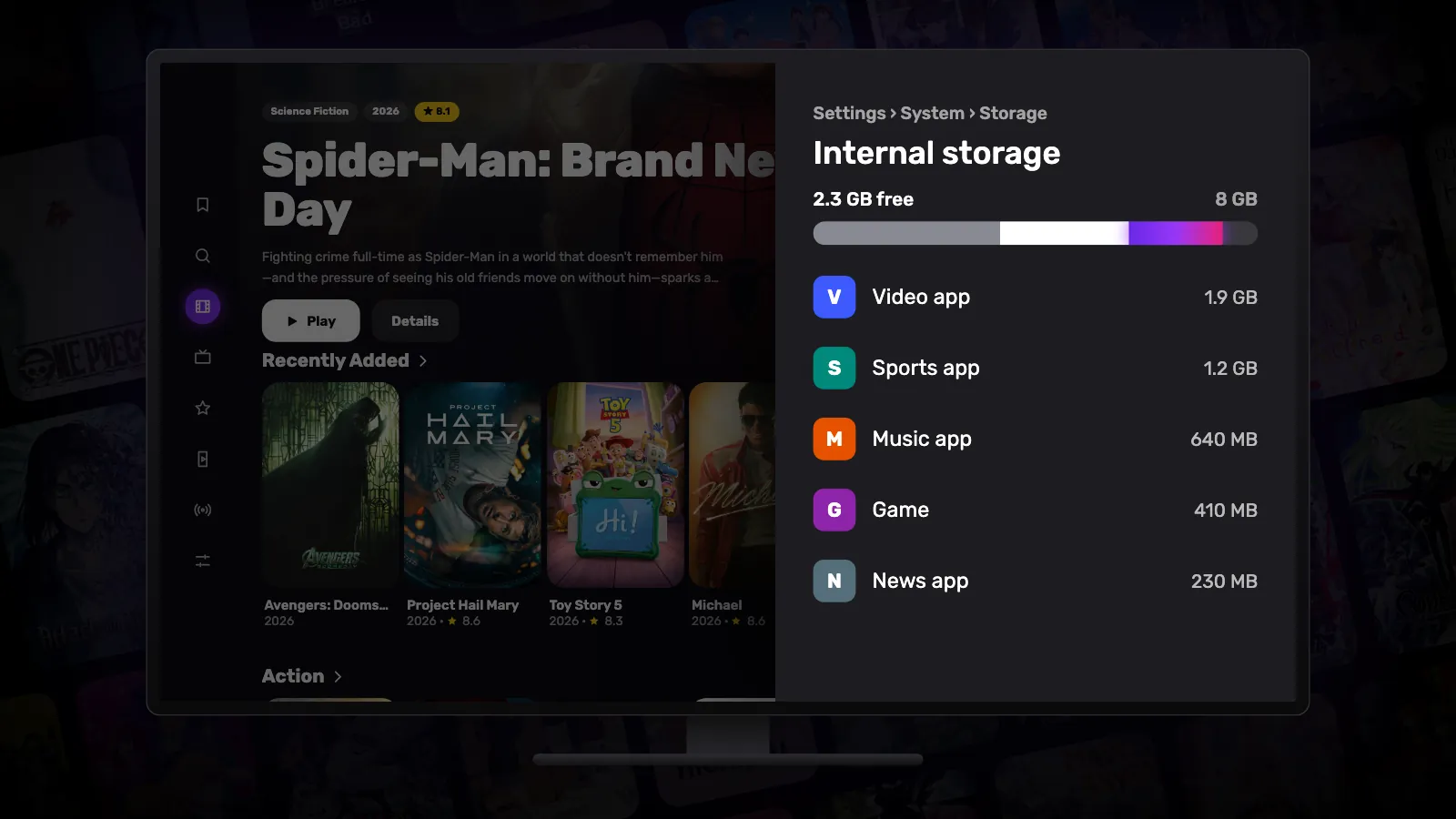
Many Google TV devices come with 8 GB of storage, and the system itself takes a large part of it. Add a handful of streaming apps with their caches and the space runs out sooner than you would expect. The signs are easy to recognise: apps that will not update, installs that fail, and menus that feel slower than they used to.
1. See what is using the space
Open Settings › System › Storage and select the internal storage. The TV shows how much is free and lists apps by size. Start with the largest ones — that is where the gains are.
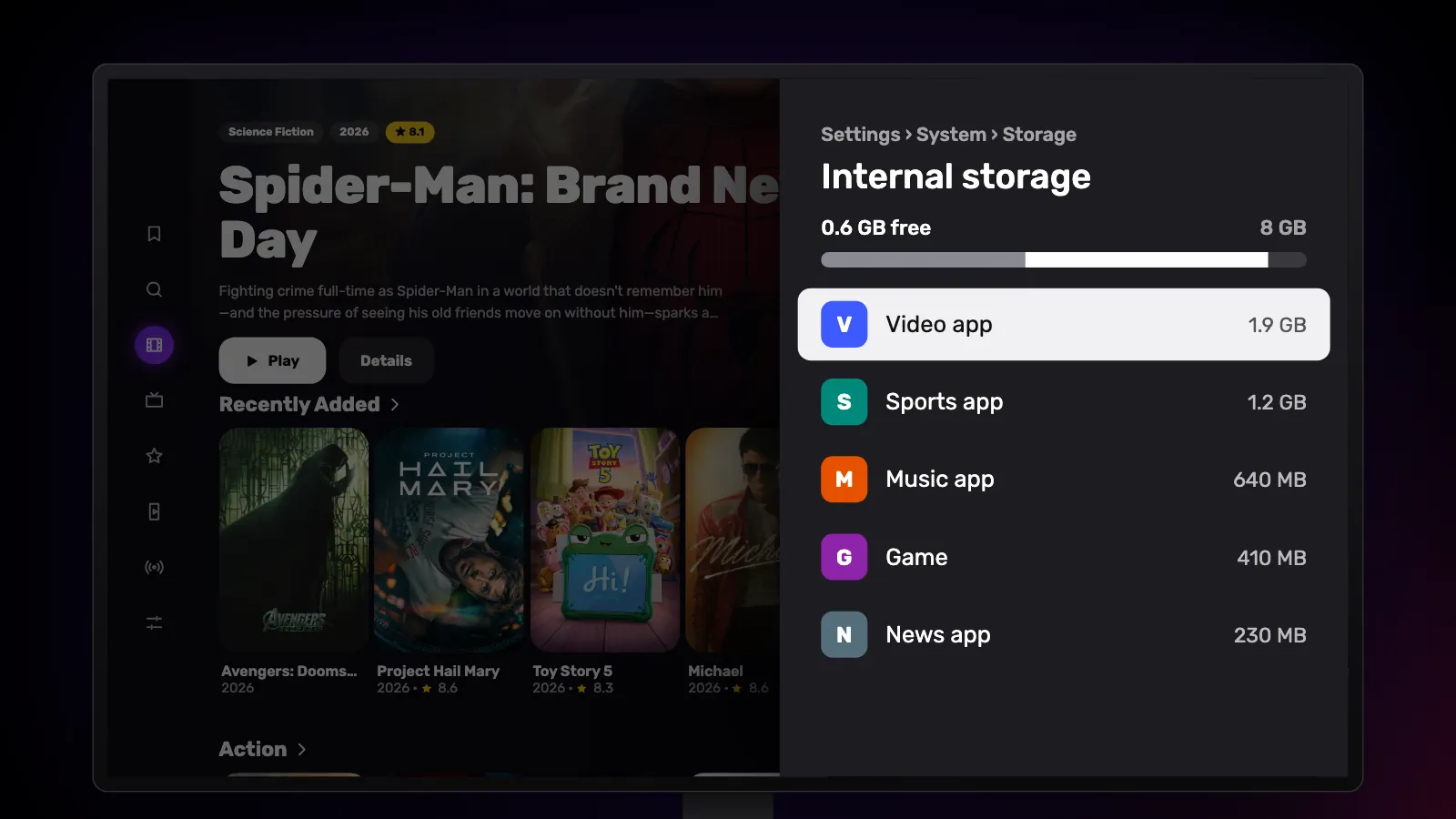
2. Clear the cache of the biggest apps
Streaming apps keep images and data they have loaded, and those caches can grow to hundreds of megabytes. Open Settings › Apps, select an app and choose Clear cache. The app loses nothing that matters; it will simply fetch what it needs again.
Choose Clear cache, not Clear data: clearing data resets the app completely and signs you out.
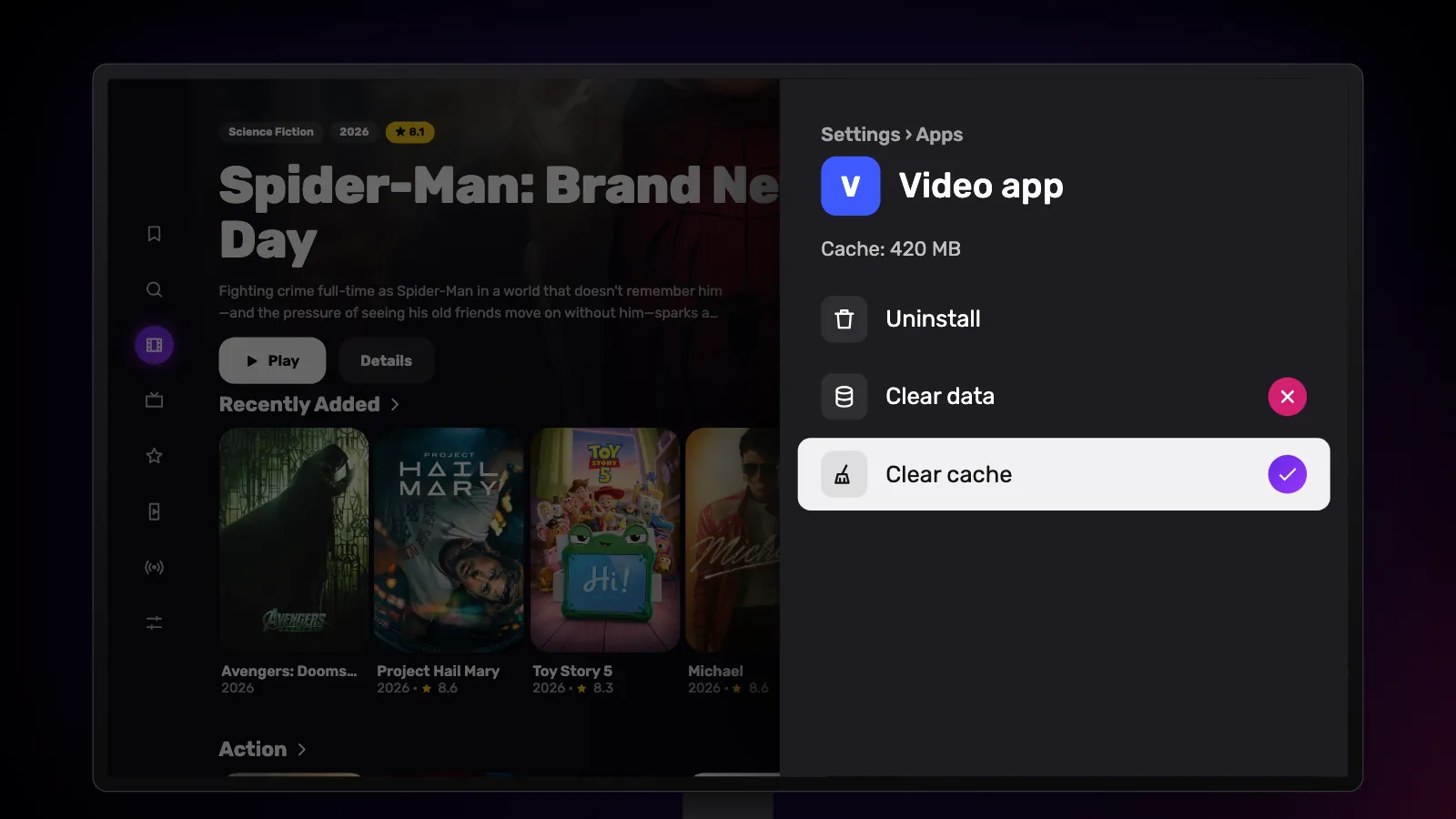
3. Uninstall what you no longer use
Apps you installed once and forgot about take space and often update themselves in the background. Uninstall them from Settings › Apps, or hold the select button on the app’s icon on the home screen. Preinstalled apps that cannot be removed can usually be disabled, which also removes their updates.
4. Delete leftover installer files
Every APK you install from a file stays behind in the Downloads folder after the app is installed. They are no longer needed once the app is in place. The Files section of the Downloader app lists what it has downloaded and can delete it, and any file manager app can clear the Downloads folder.
Reeltu works the same way: when it updates itself, it downloads the new version into Downloads. Once the update is installed, that file can go.
5. Add storage, if your device allows it
Some Google TV devices can use a USB drive as extra storage, connected directly or through a hub. Whether apps can be moved onto it depends on the device, so check your model’s support pages before buying one.
How much room Reeltu needs
Very little. The app is a download of about 7 MB, everything you watch is streamed rather than saved to the device, and your favourites and viewing progress are only a few small entries. Even a nearly full Google TV usually has room for it.
Watch Reeltu
30 seconds of the app, in your language.
Keep reading
Blog
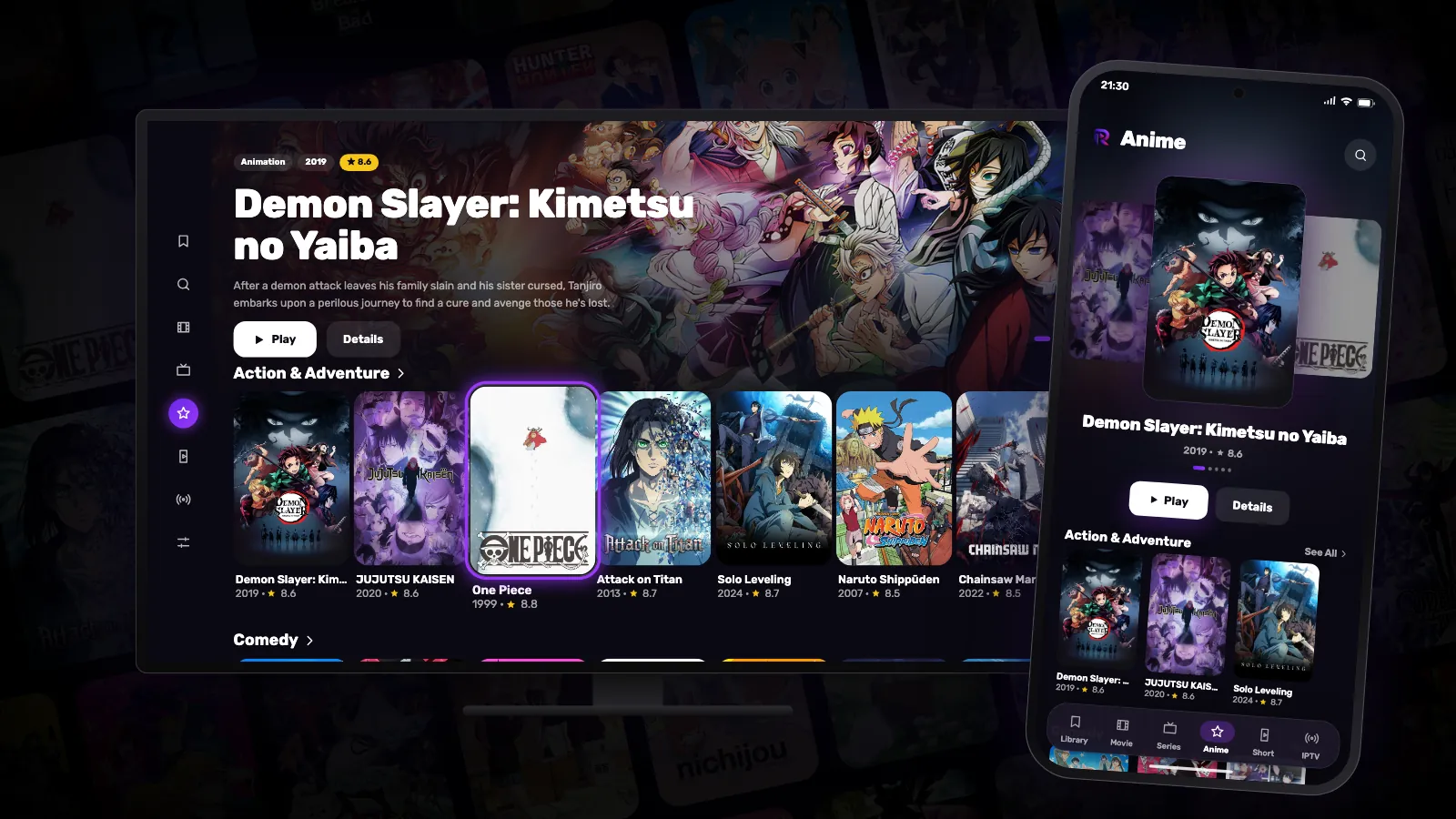
Anime gets its own tab in Reeltu
Japanese anime and animation from China and Korea now have a place of their own, with their own rows, dubs where they exist, and subtitles in up to seven languages.
Blog
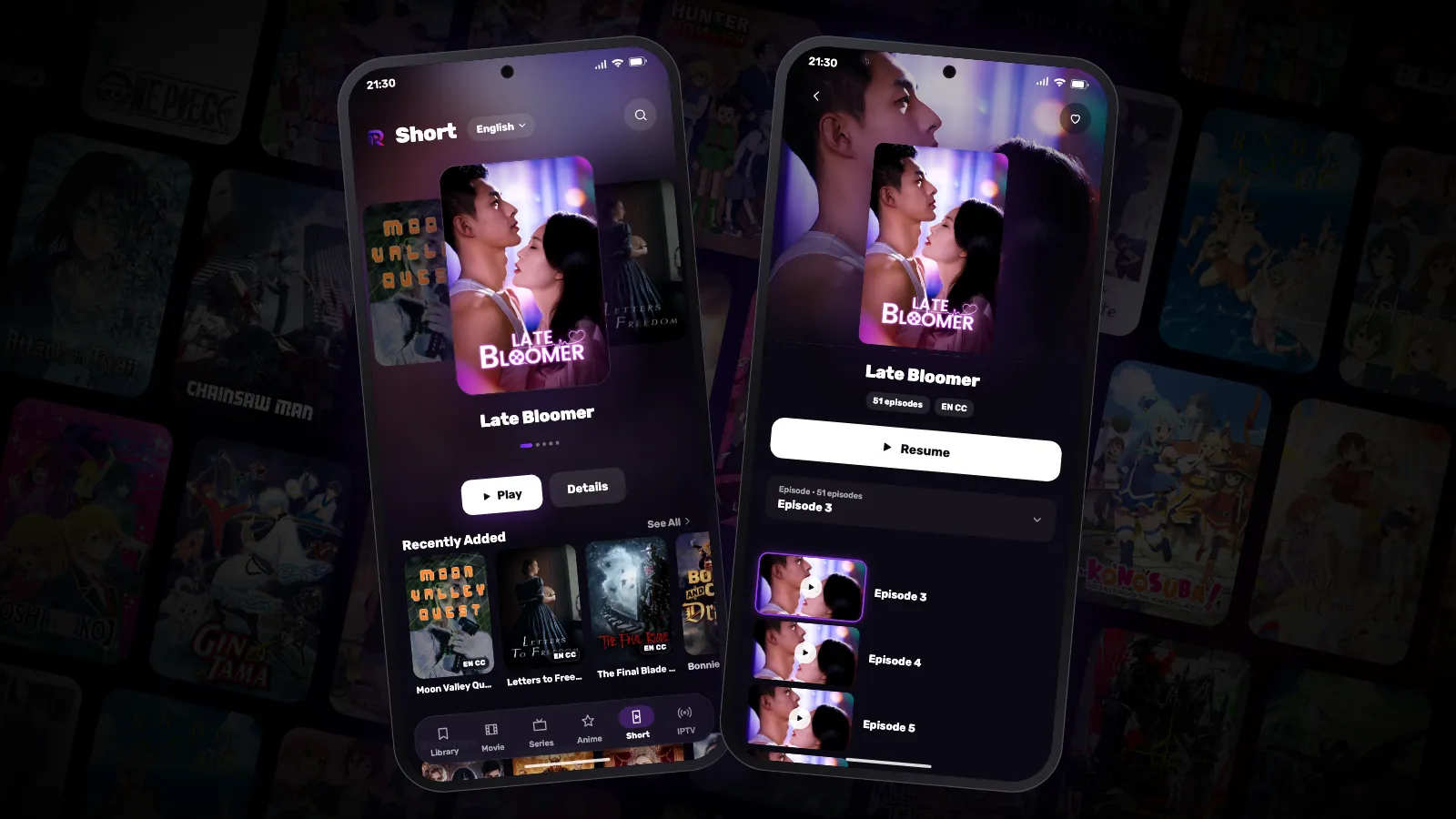
Short: vertical mini-dramas in minute-long episodes
Short dramas were made for the phone: episodes of a minute or two, stories that end on a cliffhanger every time. Reeltu has a tab for them — in your language.
Blog
How to bring an old Android TV box back to life
A box that has grown slow over the years is usually not worn out — it is full, busy and out of date. A few settings and half an hour make most of them feel new again.